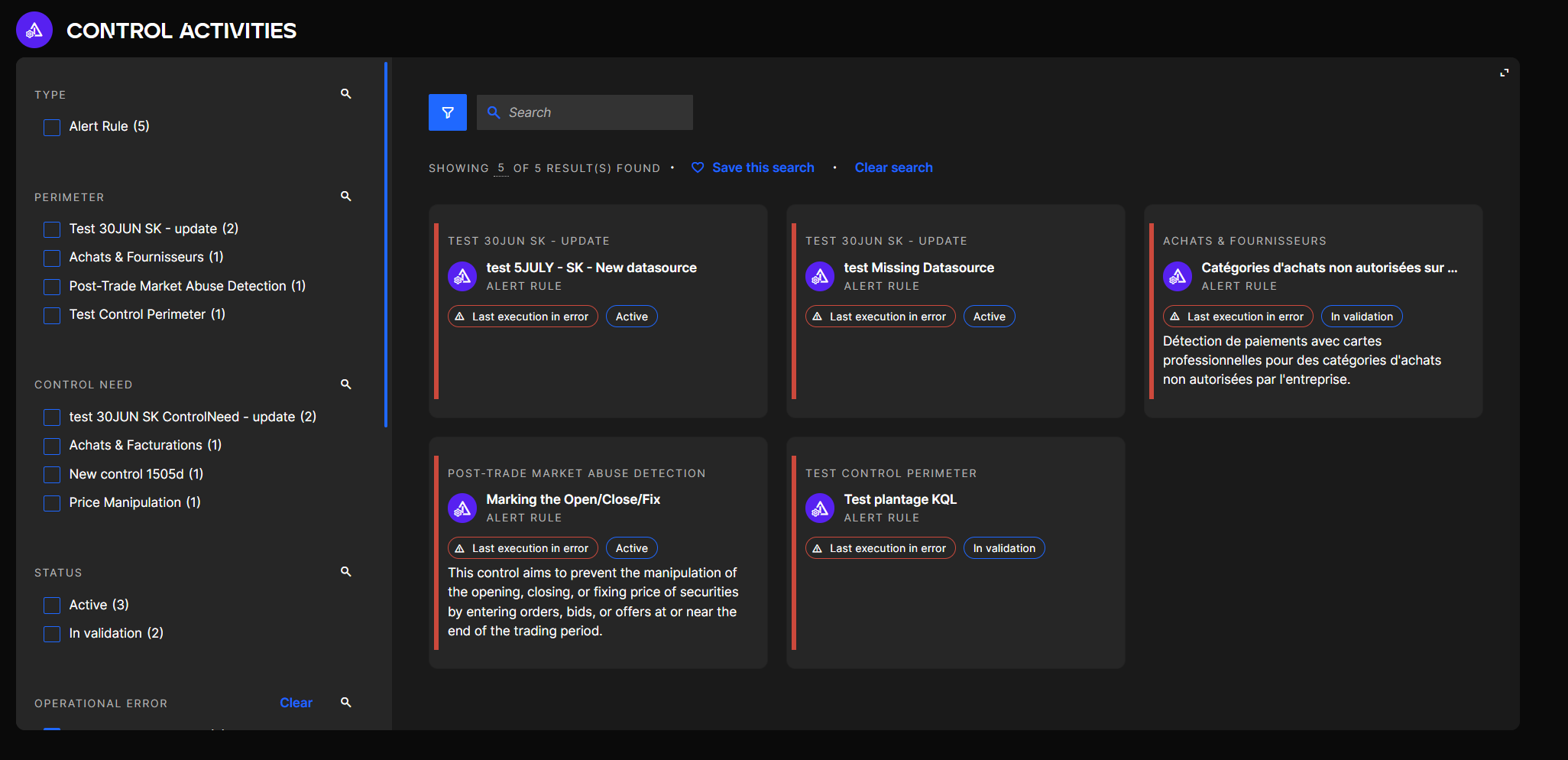
Control Activity Alert Rule
Reminder : Alert Rules are automatic controls that use KQL scripts to process the data of your organization and raise custom Alerts when required. If you need to catch the missing addresses in your employee database, or the discrepancies in your IT systems, Alert Rules are here to help you.
The Alert Rule details page gives you access to four different tabs:
- Alerts: this tab shows you the Alerts that were raised for this Control Activity.
- Rule definition : this tab contains the Control Activity configuration such as the KQL query or the Alert title templaces.
- Data Quality checks : this tab allows you to create Data Quality checks, in order to verify that the data has been correctly loaded before the execution of the Alert Rule.
- Execution history : this section contains a history of the last executions which allows you to see if the Alert Rule was properly executed in the last 72 hours.

Create an Alert Rule Alert rule (KQL Query) Execute Alert Rule Control Activity Statuses Data Quality Checks Error and Warning states
Artificial Intelligence assistance : Q.AI
A new feature has been developped to assist user with the creation, optimization of their KQL code associated with the alert rules
To leverage the Q.AI engine, use the new button made available when user is in edit mode of an alert rule :
Create an Alert Rule
In order to create or modify Control Activities in QuartzIQ, you must have the Data Manager role in the relating Control Perimeter
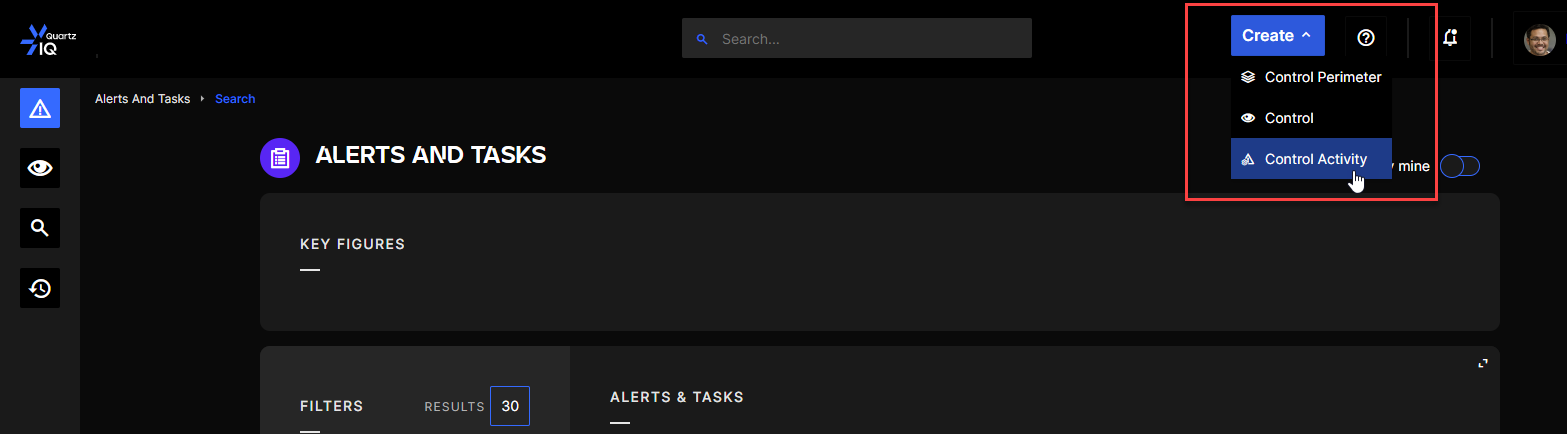
Step 1 To create a Control Activity you can click on the Create button on the top right hand side of the screen and select Control Activity.
Creating a Control Activity
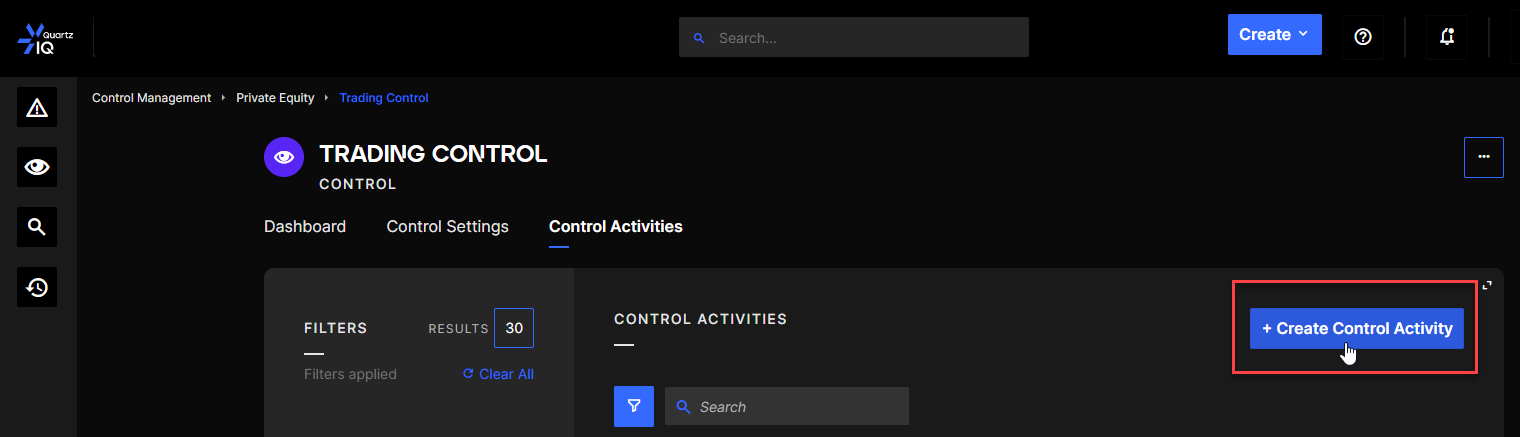
You can also go to the Control Activity tab of a selected Control and click the Create Control Activity button.
Creating a Control Activity from the Control Page
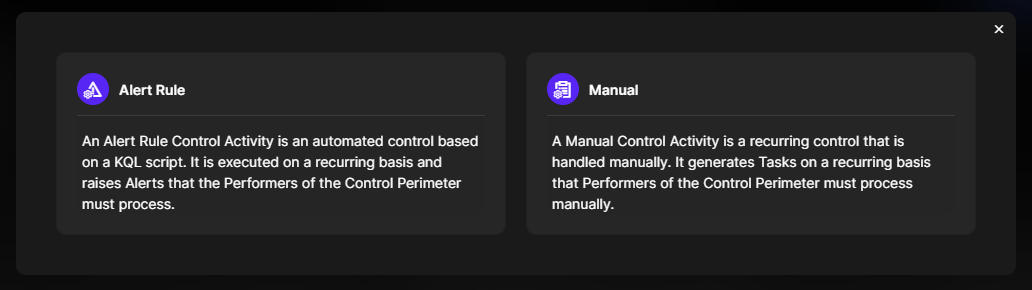
Step 2 Once this is done, you will be asked to choose whether you want to create an Alert Rule or a Manual Control Activity. Choose Alert rule.
Alert Rule or Manual Control Activity selection
Step 3 This step is identical for both types of Control Activities.
Control Activity creation window
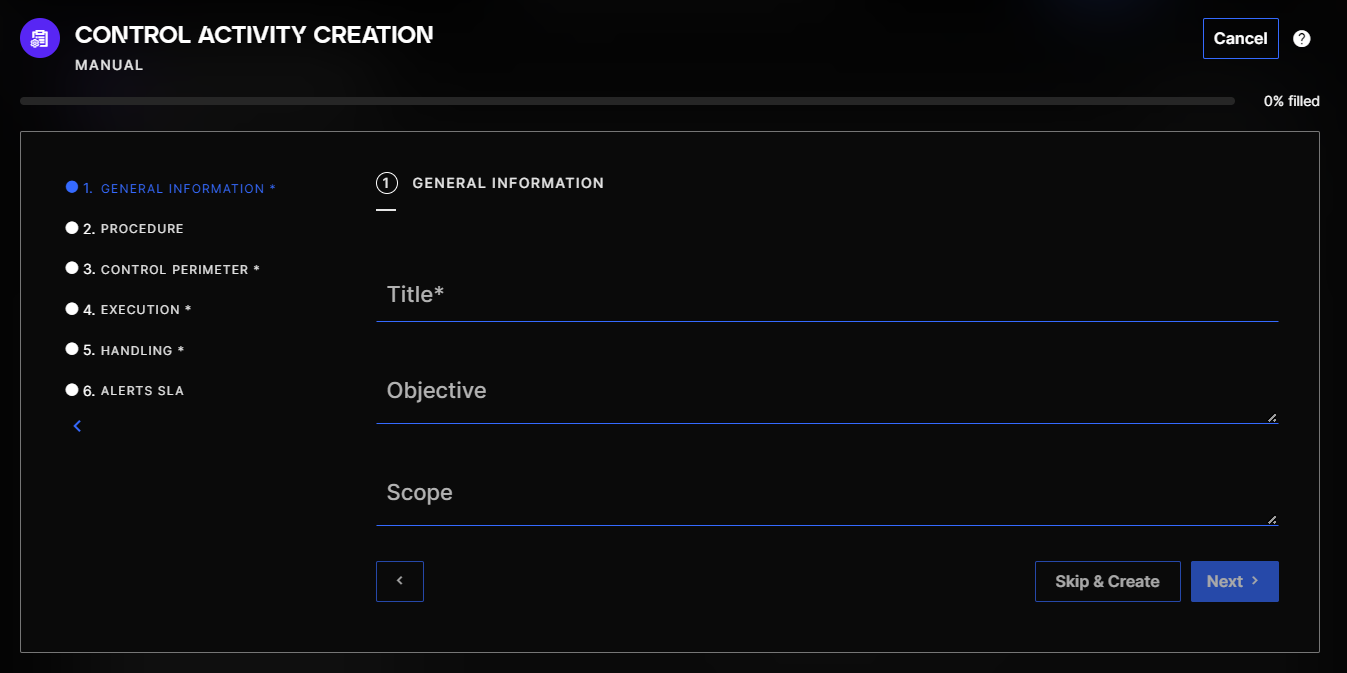
You must fill out the form which contain 6 sections.
Then complete the other required fields:
- Choice of the host Perimeter and Control (3. Control Perimeter)
- Frequency of execution (4. Execution)
- Level of severity (5. Handling)
You can optionally add an objective or a procedure (2.), or define a SLA (6. - see Alerts SLA section for more information)
Step 4
When all the required fields are completed, you can click on Save:
Step 5
Once created, you must complete the following in the Rule definition to make it functional :
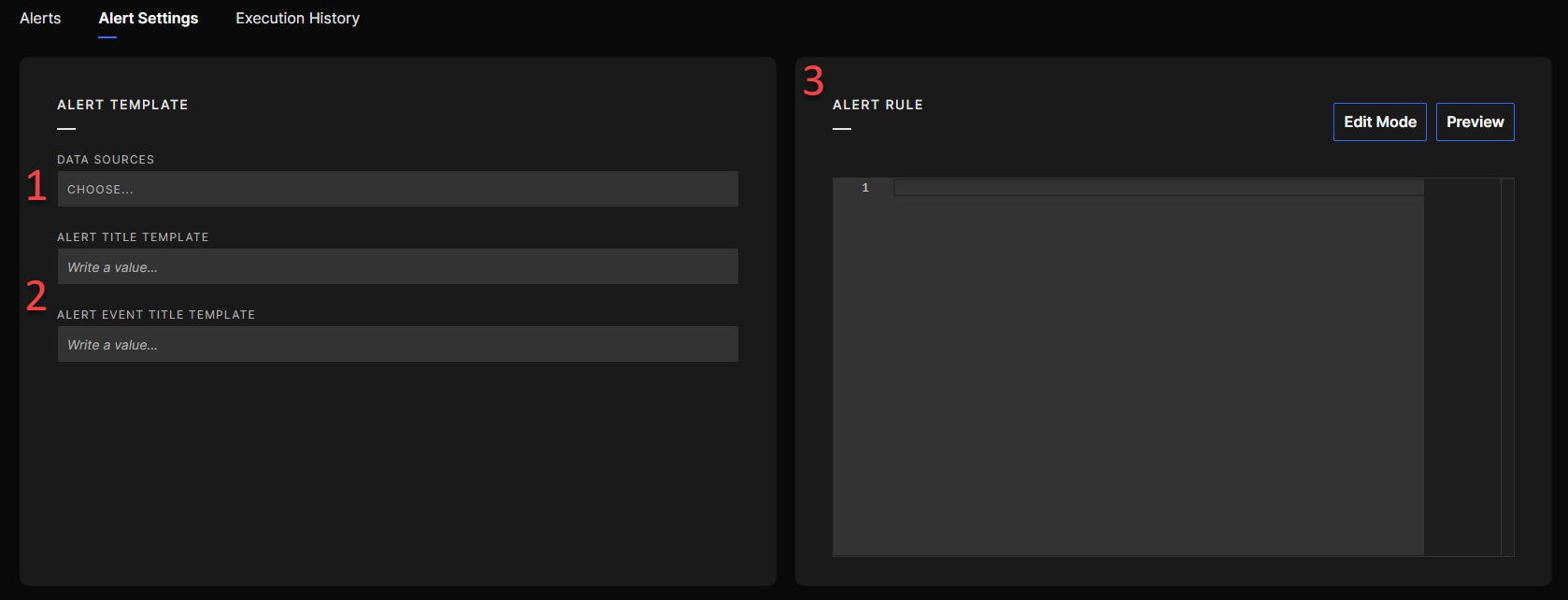
- Alert Title Templates: these fields will establish the format of the titles for the future alerts and the alert events they contain. The titles can refer to field names from your Alert Rule configuration. You must write them between brackets to do so (
{fieldname}). - Alert Rule: this is where you type the query that will generate custom alerts. Please refer to the Alert Rule (KQL query) section and the KQL primer to learn more about KQL programming.
You can only use Data Sources (data tables) that were approved in your Control Perimeter. If you want more information on how to add Data Sources in Perimeters, go to the Control Perimeter article, section Add/Modify Data Source
Alert Rule (KQL Query)
With Alert Rules, programmed in Kusto Query Language (KQL), you can create custom and complex controls that use the data tables of your organization, loaded in QuartzAdmin.
The Data Sources you can refer to in your query are the ones that were approved in your Control Perimeter. Refer to the Control Perimeter article, section Add/Modify Data Source, to have more information.
There is a conversion in the name of the target connection to have the name of the Kusto Table/datasource:
- The first letter of each word is in uppercase
- Spaces are removed
- Any special caracter is removed and the first letter of each word is in uppercase
Ex: My Table => MyTable My table => MyTable My-table => MyTable
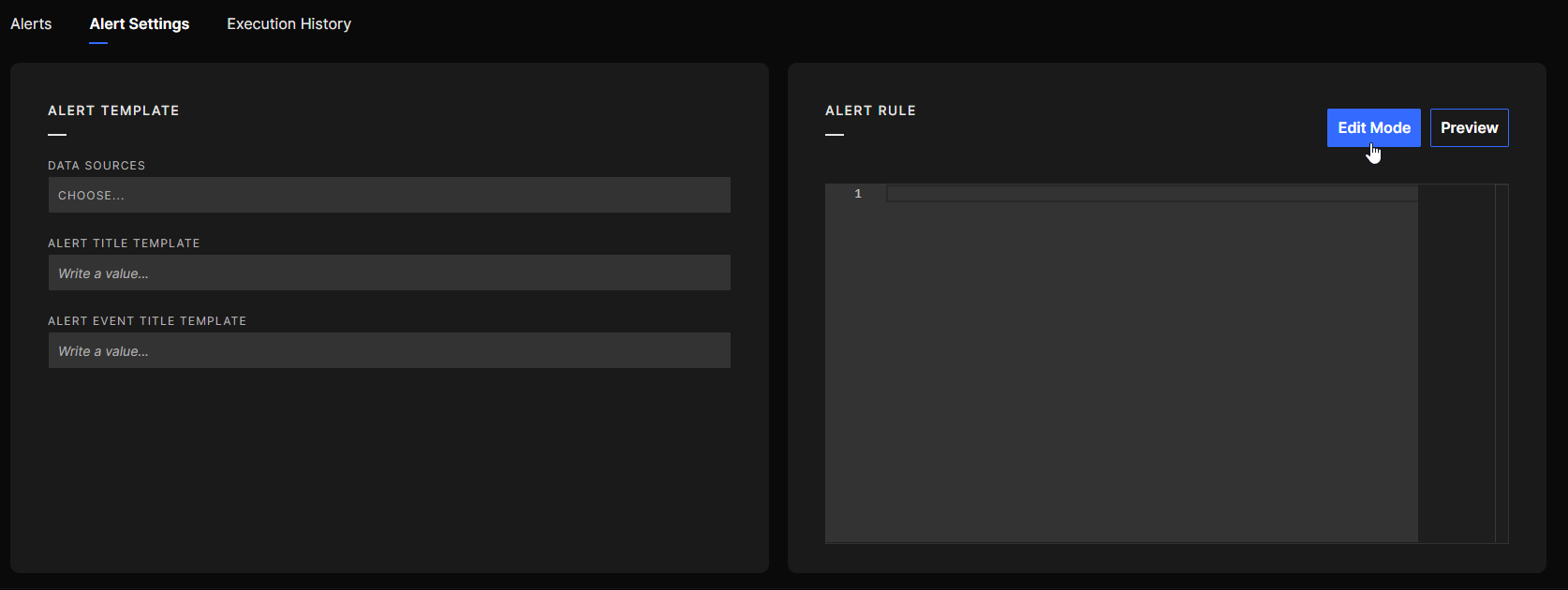
Step 1 Go to the Rule definition tab of the Alert Rule you want to set up, and click on Edit Mode to start programming:
Step 2 Here is an example of simple query:
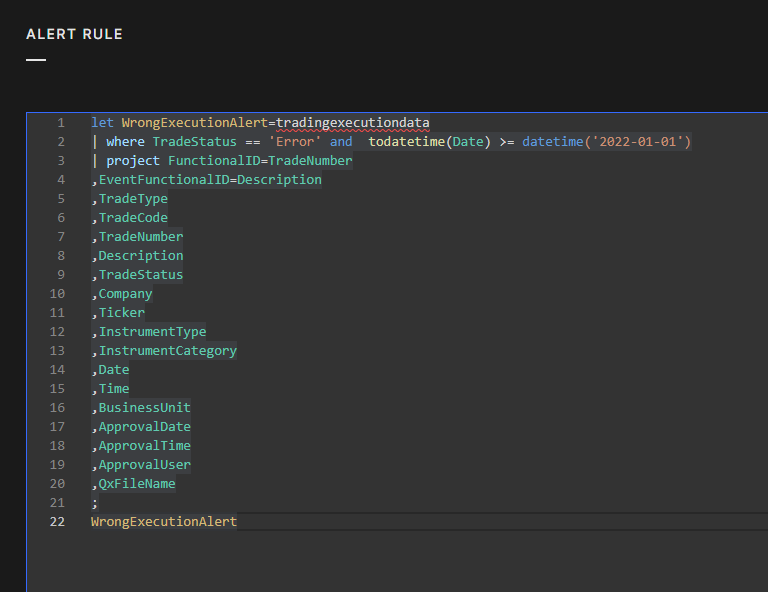
Learn the basics of KQL query writing with the KQL Primer.
To be able to generate Alerts and Alert Events, you must always set FunctionalIDs and EventFunctionalIDs. They must refer to fields used in the query. Refer to the KQL Primer to learn how to set these IDs.
Step 3 Click on the Save button to confirm your query. The Preview will automatically execute to let you know if your query is working properly and give you a preview of the alert results. If it is, you can close the Edit Mode.
Step 4 Make sure that you entered Alert title and Alert Event titles templates. Refer to Create an Alert Rule section for more information.
Step 5 You can click on Preview to see again the preview of your results:
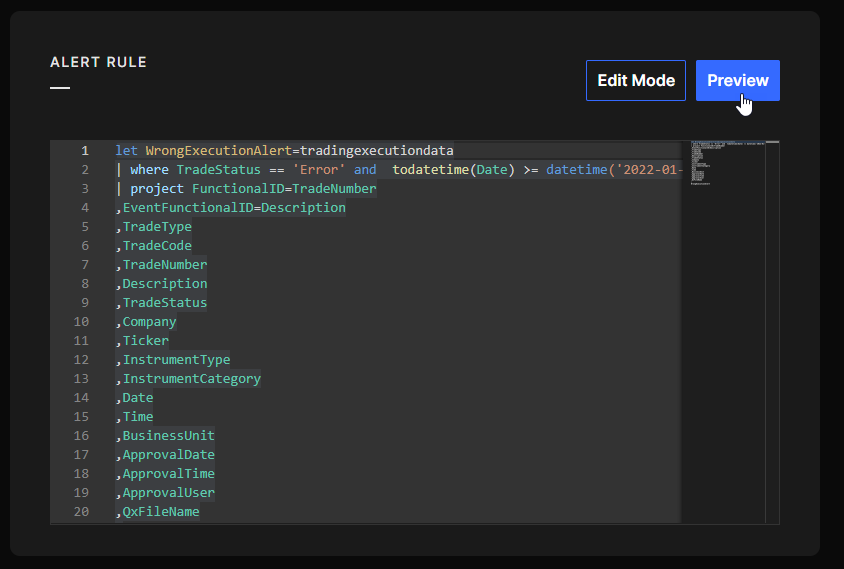
Step 6 The query will be executed and alerts will be generated if the query returns results:
- when you execute the Alert Rule manually. See the Execute alert rule section for more information
- or, the next time the next execution date and/or the frequency of execution is reached. See the Create an Alert rule section for more information.
Execute Alert Rule
You can execute an Alert Rule manually if you want to see the results of your query immediatly after its creation or earlier than the next execution date. You can also execute again an Alert Rule if the programmed execution did not work or the data was available later than usual for some reason.
View of the "..." menu in an Alert Rule page
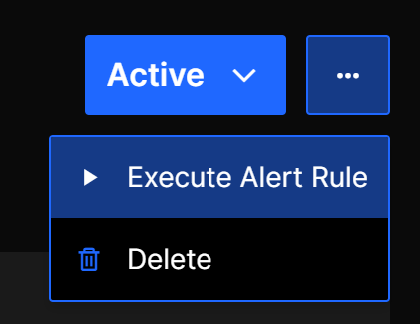
You must have the Data Manager role to execute an Alert Rule manually.
Control Activity Statuses
Alert Rules have 4 statuses :
- Draft: new Control Activities will be automatically created in this status. It will allow you to modify the Control Activity without it being executed.
- In Validation: this status can be used when you are testing your Control Activity purposes and enables the execution. The Alerts generated will be in a “in validation” status and will only show in the Control Activity page. When changing to another status, the Alerts generated in this status will be deleted.
- Active: this status enables the execution of the Alert Rule normally.
- Decommissioned: this status will disable the execution of the Control Activity.
View of status menu in an Alert Rule page
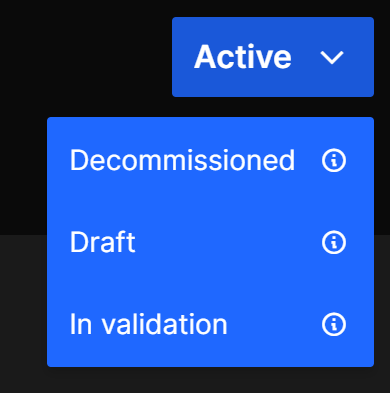
Alerts generated while Alert Rule is in the "In Validation" status will be deleted when changing to another status. Also, Alert Rules can only be executed manually if the status is "In Validation" or "Active".
Data Quality Checks
Data Quality Checks are checks on data performed before the Alert Rule is executed, allowing to decide whether to execute the rule or not based on the data. This is quite useful to verify if mandatory fields have been loaded into the Data Source, or if the data is sufficiently up-to-date in order to correctly perform the given control.
There are two types of Data Quality Checks on an Alert Rule :
-
Custom KQL Code: This data quality check is based on custom KQL code that will be executed. In this case, if no rows are returned by the query, the data quality is considered sufficient, and the check is passed. During the configuration, you will need to write the KQL query by clicking on Edit mode. Alert Rule custom code Data Quality Check
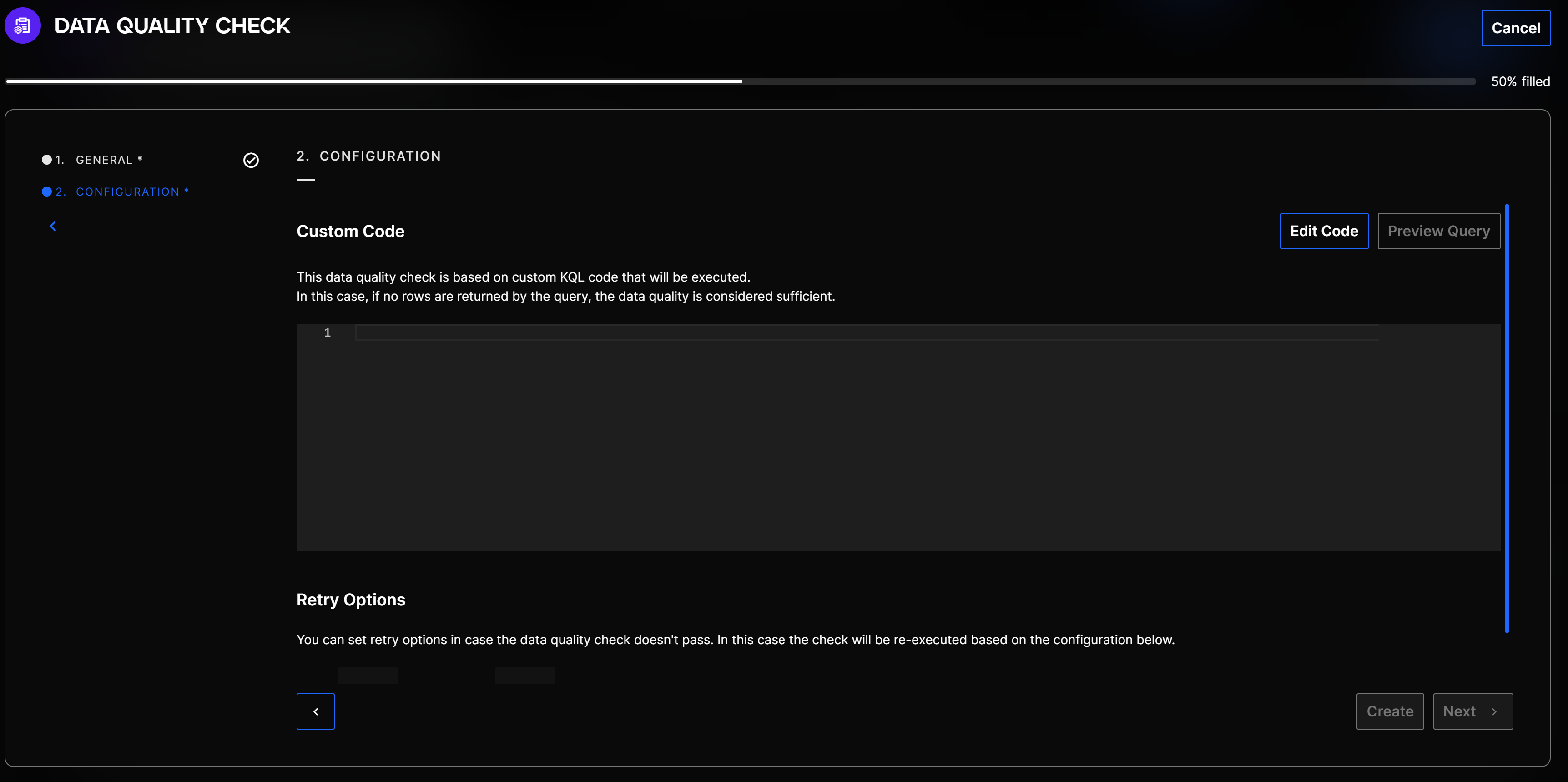
-
Last Data Source Loading Date: This Data Quality Check ensures that the Alert Rule only runs when the specified Data Source has been loaded within a specified time frame (days, hours, minutes). During the configuration of this Data Quality Check, you will need to specify the time when the check need to be executed. Alert Rule last data source loading date Data Qality Check
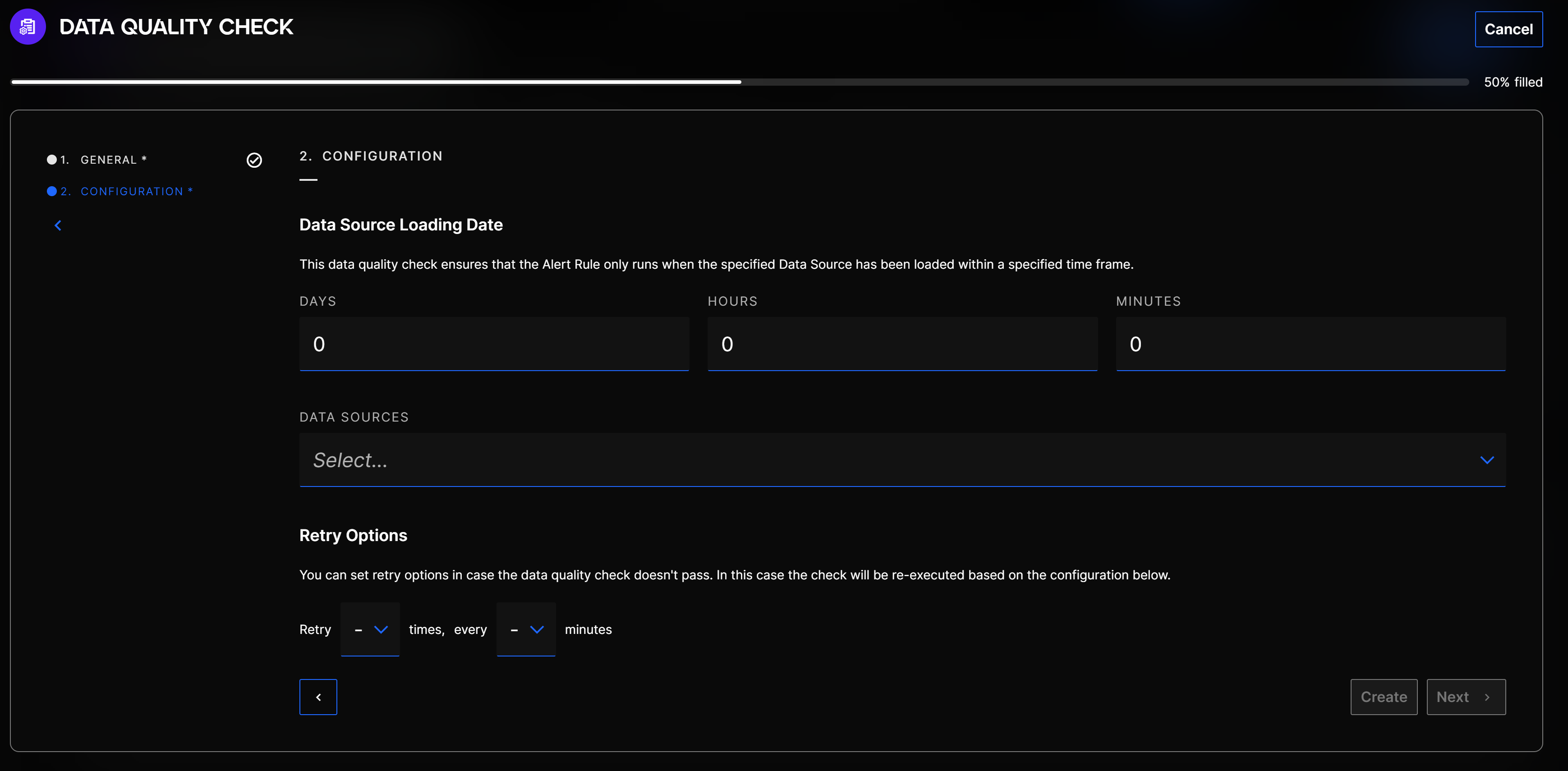
Each of these Data Quality Check are configured with a Warning Level:
- Warn and continue: this option will allow the Alert Rule to execute even if the Data Quality Check fails, but will raise a warning. The Alert Rule will be in Data Quality Warning state and the Alert Rule execution history will show the warning.
- Stop execution: this option will prevent the Alert Rule from executing if the Data Quality Check fails, preventing any false Alerts from being generated. The Alert Rule will be in Data Quality Check Failed state and the Alert Rule execution history will show the warning.
You can also configure retry options for all the Data Quality Checks (accessible within the Data Quality Checks tab in the Alert Rule). With this option, you can set the number of retries and time between each retry, for all the Data Quality Checks.
If one Data Quality Check of Warning Level "Stop Execution" doesn’t pass, the execution is stopped, and a warning is displayed in the execution history.
You can also see the Control Activities which currently have a warning in the Control Activities search page.
Control Activity search page showing warning filter
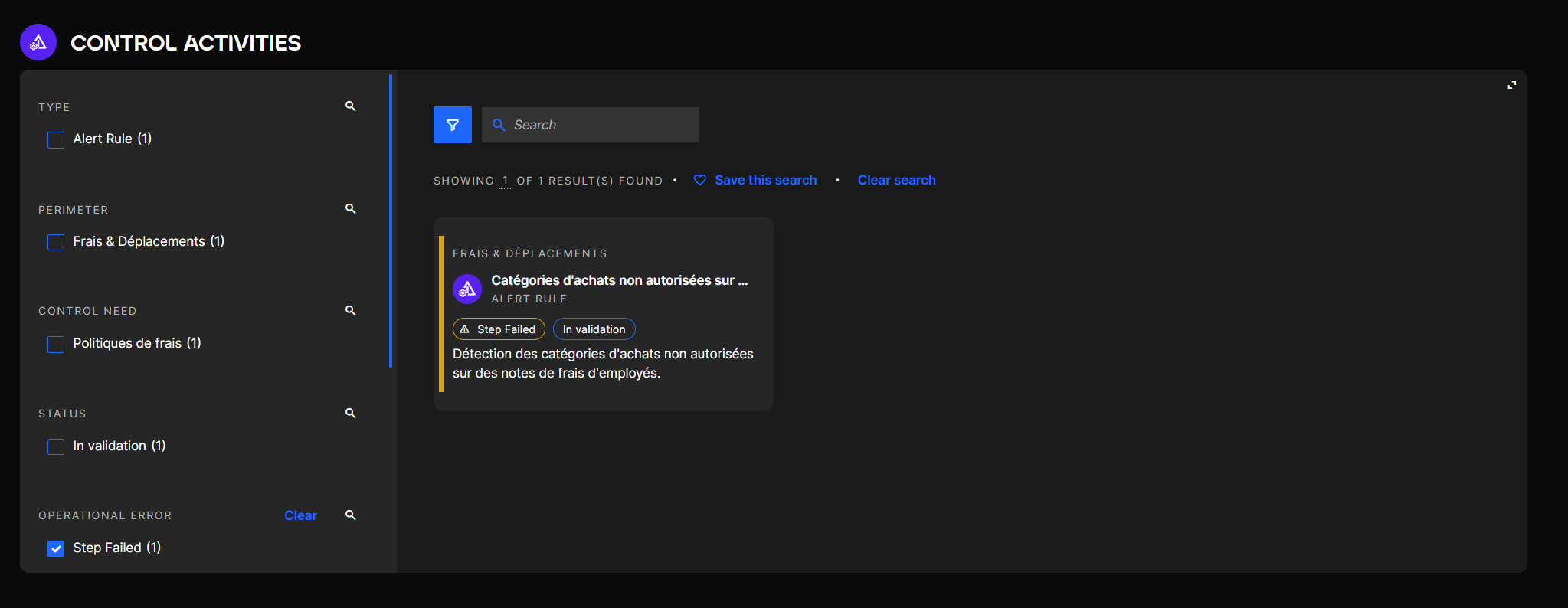
The Control Activity warning is removed upon the next successful execution of the Alert Rule.
Error states
When an error arises during the execution of an Alert Rule, the Alert Rule will be in an error state. There are three types of states :
- Missing Data Source: this state will be triggered if a Data Source is missing during the execution.
- Too Many Alerts: this state will be triggered if too many Alerts and Alert events are generated during the execution (> 5000), which would probably mean the Alert Rule is misconfigured.
- Last Execution in Error: this state will be triggered if any other error is raised during the execution.
Alert rules in an Error state will not be executed anymore until it is updated which will remove the error state.
You can also see the Control Activities which currently are currently in an error state in the Control Activities search page.
Control Activity search page showing error filter