Alerts and Tasks
The Alerts and Tasks menu is the homepage of QuartzIQ.
By default, all of the Alerts and Tasks of your Control Perimeter(s) are displayed.
View all Alerts and Tasks View an Alert or Task Process an Alert or Task Alert & Task status Group Alerts
Alerts are automatically generated by Alert Rules you can program through KQL queries. Tasks appear following a defined planning of occurence you can set in Manual Control Activities. Both are Control Activities as per QuartzIQ classification. Please read the Control Activity article to obtain more information on how to set them up.
View all Alerts and Tasks
When you open QuartzIQ, you should automatically appear on the Alerts and Tasks page. This page indicates Alerts and Tasks that need to be treated and the ones that were previously treated.
Alerts And Tasks menu
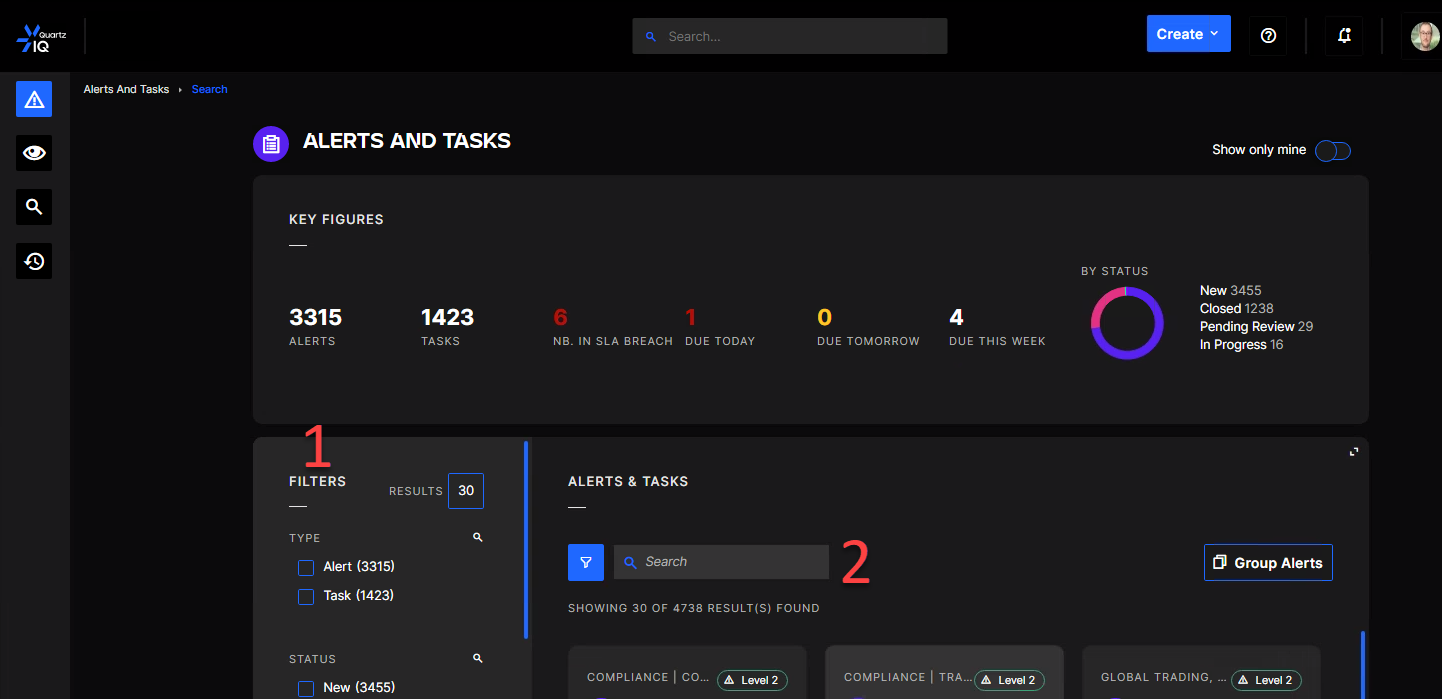
The Key figures section highlights the overall volume of activity and the activity that has to be planned for the next few days. You can look for a specific Alert or Task with preset criteria by using the filters (1) or with keywords by using the search bar (2)
All Alerts and Tasks should appear bellow the key figures. For each one of them, you should be able to see the following information:
Task closeup
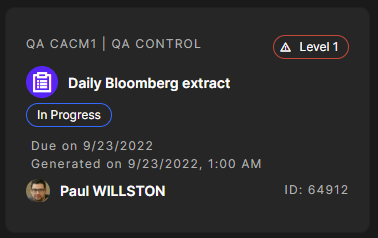
- Host Control Perimeter and Control
- Level of severity (from 1 to 10)
- Alert or Task title
- Status (see Status section below for more details)
- Due date (if a SLA has been set - see the Control activity page for details on SLAs)
- Date of Alert or Task generation
- Name of the default Performer (if any has been set)
- Alert or Task ID
View an Alert or Task
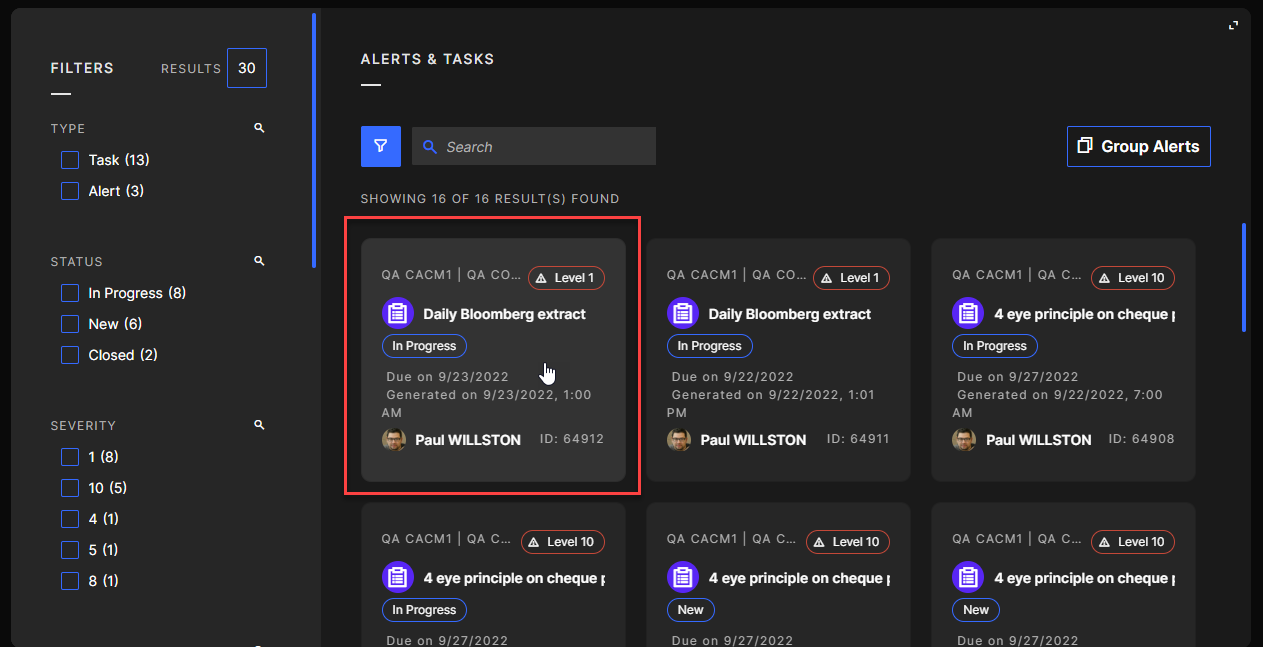
To view a specific Alert of Task, or to take action on it, you can click on its box.
Selecting an Alert or a Task
Once you click an Alert, you should be able to see the following details :
Alert level view
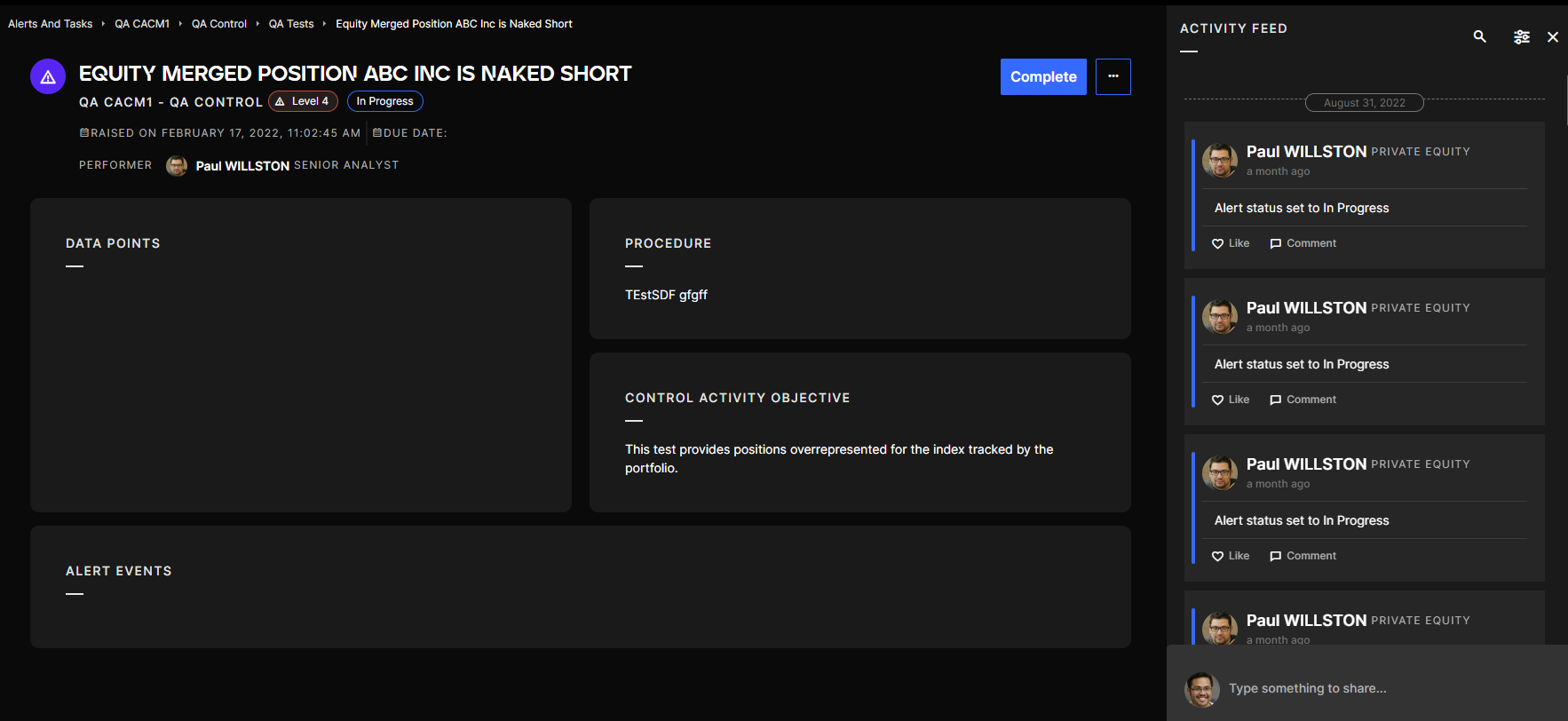
- Data Points: summary of the major datapoints for the Alert
- Procedure: information on how to analyze this type of Alert
- Control Activity Objective: information on why this Alert has been activated
- Alert Events: detailed datapoints for the events that triggered the Alert rule
- Activity Feed: shows the previous comments and attachments that were added to the Alert and its status changes
In a Task, you should be able to see the following details :
- Procedure: information on how to do the Task
- Objective: the underlying objective of the Task
- Activity Feed: shows the previous comments and attachments that were added to the Task and its status changes
Process an Alert or Task
In both Alerts and Tasks you can take the following actions:
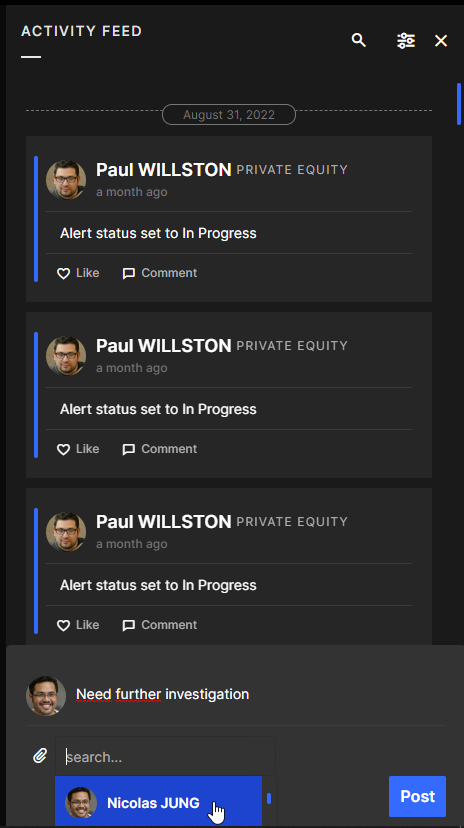
- Comment / attach a document or image / tag someone in the Activity Feed
Activity feed in an Alert or Task
- Change the Alert status by clicking on the button Process, Submit For Review, Complete Review, or Complete (see Status section below for more details)
Changing the status of an Alert or Task

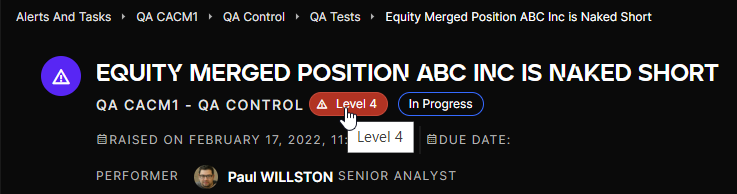
- You can also modify the level of severity by clicking the level of severity button:
Changing the severity level of an Alert or Task
Alert and Task status
Any Alert or Task status can be modified by the associated Performers. Statuses are useful to organize your work and to communicate to your colleagues or manager what has been done and what are the next steps.
Available statuses and actions
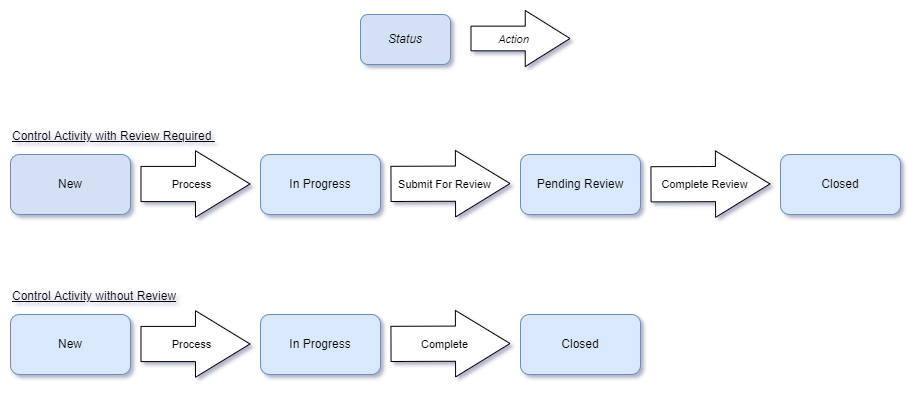
Actions reflect the action buttons you can find in any Alert or Task:
Examples of action buttons
Some Control Activities can be setup with a review requirement. Once the analysis has been completed, you cannot close the Alert or Task. Only your colleagues or your manager can close it after their review. Refer to the Control activity page, in section Review Process, to learn more about the review process.
Group Alerts
You can group Alerts or Tasks that belong to the same control activity by clicking on the Group Alerts button:
Group Alerts button on the Alerts & Tasks menu
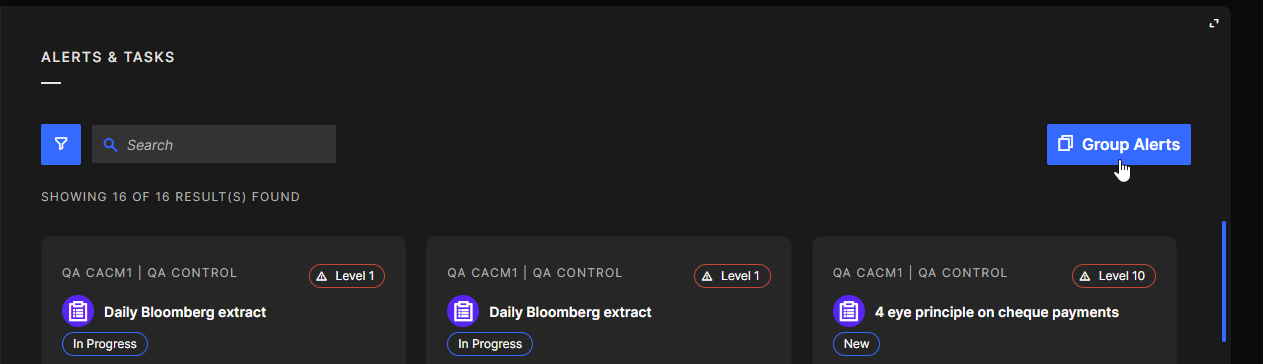
Grouped Alerts or Tasks can be assessed as a whole, with the same status and analysis for all.
View of grouped Alerts
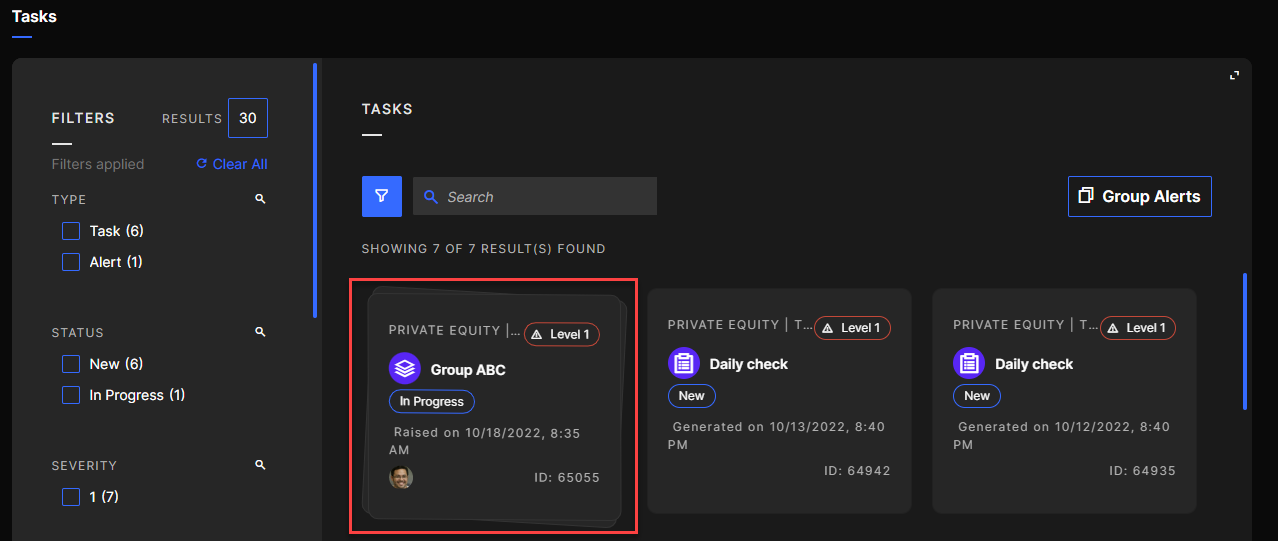
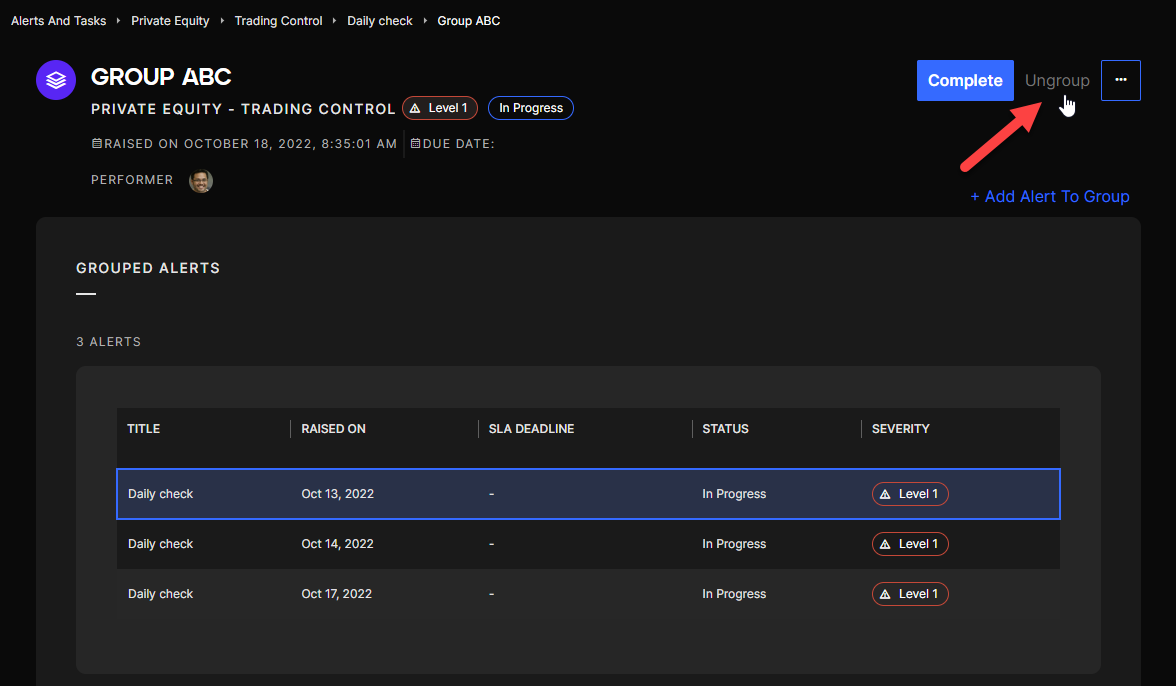
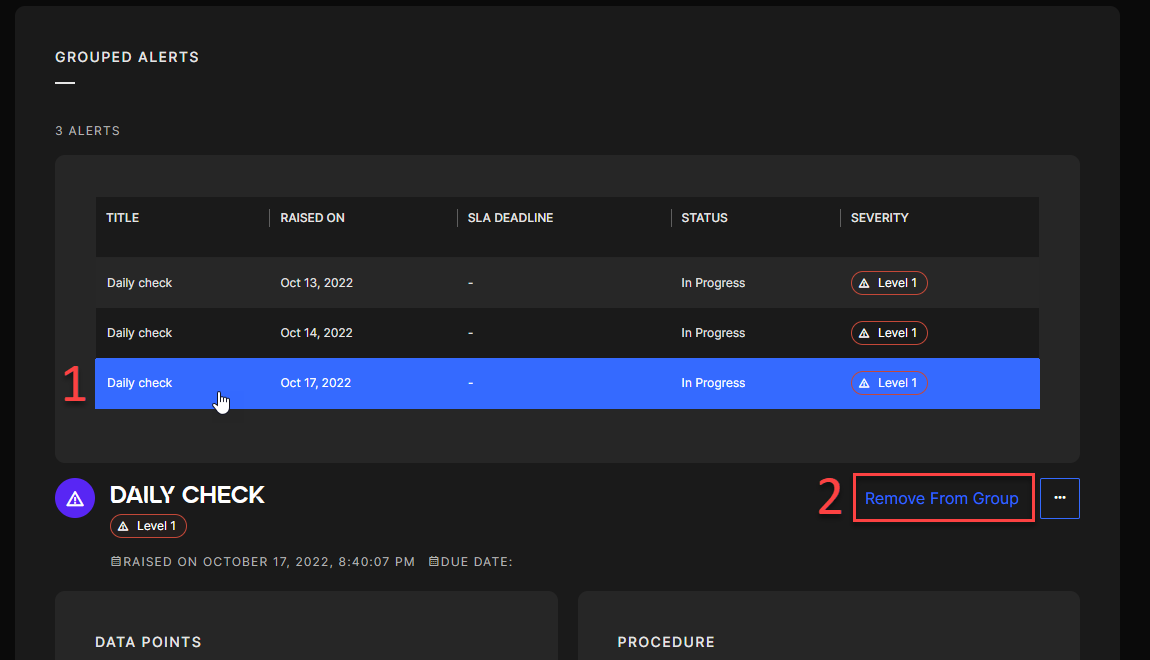
It is then possible to ungroup all or specific alerts.
To ungroup specific Alerts, go in your group and then:
- Select the Alert you want to remove from the group
- Click on "Remove From Group"
Removing from group
To ungroup all Alerts, go in your group and click on Ungroup.
Ungrouping all Alerts