Operational (Non-Investment) Risk Events and Losses

In this documentation we will go through all the steps from the creation of the operational loss statement, until the closure of the potential action plans. Here is the main sections of this documentation
- 1. Create your Operational Loss Statement (“statement”):
- 1.1 There are two options to start/create your statement:
- 1.2 (Optional) Once your statement is created, you can attach supporting documents. From your statement, find the “DOCUMENTS” section and upload your files.
- 1.3 If you need to modify your statement, go on your statement and select “Edit” at the top right corner “…” menu:
- 2. (Mandatory*) Create your “Action Plan”.
- 2.1 From your recently created statement, find the “ACTION PLAN” section (at the bottom of the page). Click on “Create” and fill out the two (2) sections of the form and all required (*) fields.
- 2.2 When assigning the “Person in Charge” of your action plan, keep in mind the following:
- 2.3 If you need to edit your Action Plan, go to the “Action Plan” page from the left menu, under the section “Operational Loss”. Select the Action Plan you want to modify and click on “Edit” in the right corner “…” menu:
- 3. Submit your Operational Loss Statement
- 4. Complete and Submit your Action Plan
- 5. For any questions or additional help
1. Create your Operational Loss Statement (“statement”):
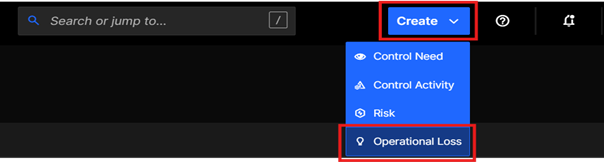
1.1 There are two options to start/create your statement:
- Option 1 : From the "create" button located at the top of the screen :
- Option 2 : From the operational loss menu entry
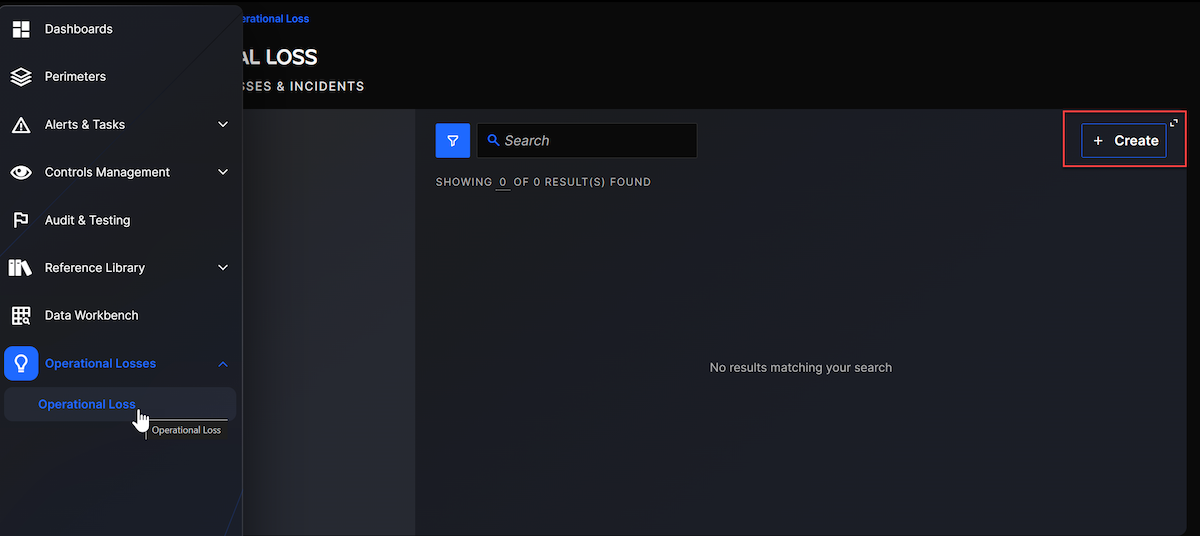
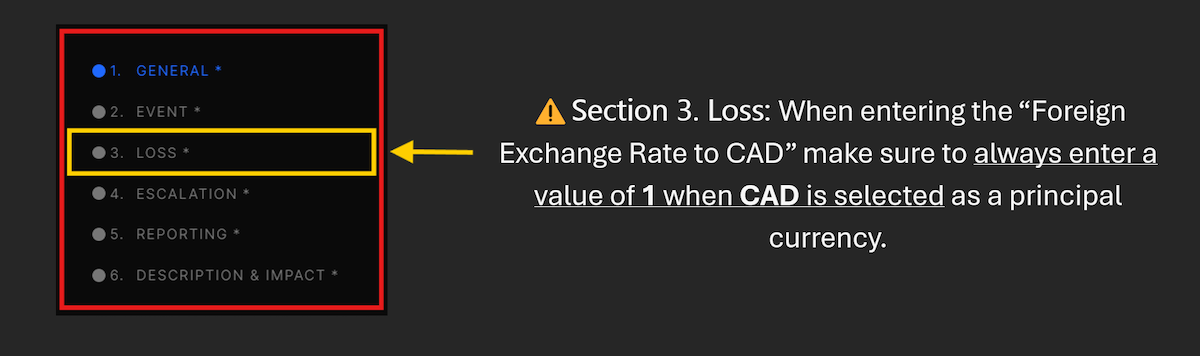
A pop-up form will appear. Please fill out the six (6) sections of the form and all required (*) fields, then click on “Create”.
1.2 (Optional) Once your statement is created, you can attach supporting documents. From your statement, find the “DOCUMENTS” section and upload your files.

1.3 If you need to modify your statement, go on your statement and select “Edit” at the top right corner “…” menu:

Don’t forget to hit the “Save” button once you are done with modifications.
2. (Mandatory*) Create your “Action Plan”.
2.1 From your recently created statement, find the “ACTION PLAN” section (at the bottom of the page). Click on “Create” and fill out the two (2) sections of the form and all required (*) fields.

Tips: You cannot find your statement? Go back to the “Operational Loss” page from the left menu. It will display a list of your existing statements.
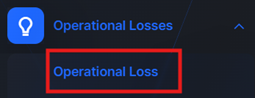
2.2 When assigning the “Person in Charge” of your action plan, keep in mind the following:
- Multiple persons can be identified in the “Person in Charge” list.
- As the creator of the plan, you MUST include yourself in the list to be able to submit the Action Plan.
- The “Person in Charge” must be aware of the Action Plan process for accountability purposes.
2.3 If you need to edit your Action Plan, go to the “Action Plan” page from the left menu, under the section “Operational Loss”. Select the Action Plan you want to modify and click on “Edit” in the right corner “…” menu:

Don’t forget to hit the “Save” button once you are done with modifications.
3. Submit your Operational Loss Statement
⚠️When a statement is submitted, you will no longer be able to edit and make any modifications to it. The statement will be in read-only status.
⚠️Tips: If you find an error in the information provided after submitting a statement and that you cannot edit it, you have the option to “Delete” the statement and will need to create a new statement.
Go on the statement you want to submit and change status from “In Progress” to “Submit for review”

Your statement is now in “Pending for review” status. A member of the Enterprise Risk team will review it.

Now that your statement has been submitted it will be reviewed and updated by Enterprise Risk. The status of the statement will change during the process. Please refer to the “Status” table at the end of this document to understand each status and what access/edit rights you have as a user in each stage. (Figure 1).
Note that at any time in the process, the statement can be deleted using the delete button in the three dots menu :

4. Complete and Submit your Action Plan
⚠️ In order to submit your Action Plan, you must be included in the “Person in Charge” list.

To submit the Action Plan: a. Go to the “Action Plan” page from the left menu, under the section “Operational Loss”. b. Select your Action Plan change status from “In Progress” to “Submit for review”

c. The Action Plan is now in “Pending for review” status. The Person in Charge is now responsible to review it.

Please refer to the “Status” table to understand each status and what rights you have as a user in each stage (Figure 1).
5. For any questions or additional help
Please contact the ERM team or open a ticket in your ticketing system.
Figure 1: Status of Statement/Action Plan
| State | description |
|---|---|
| In progress | When a statement/Action Plan has been created but not yet submitted. User can view and edit. |
| Pending review | Statement/Action Plan has been submitted by the user and is being reviewed by ERM. User can only view. |
| Completed review | Statement/Action Plan review has been completed by ERM. User can only view. |
| Archived | Statement/Action Plan has been archived by ERM. User can only view. |
| Cancel | The statement/Action Plan has been canceled. |