Data Workbench
The Data Workbench allows Data Managers to test/create KQL scripts in order to view Data Sources and also work on future Control Activity Alert Rules. This allows Data Managers to work on KQL code without impacting any existing Control Activities.
Create and execute queries Saved Queries Create an Alert Rule from a query
Create and execute queries
Navigate to the Data Workbench section in the side menu (you will only see this section if you are a Data Manager in at least one Control Perimeter). The context of the Data Workbench is the Control Perimeter. This means that the Data Sources and Saved Queries are only for the Control Perimeter you have select. By default, when navigating to the Data Workbench, you will automically be redirected in one of the Control Perimeters in which you are a Data Manager.
Data Workbench
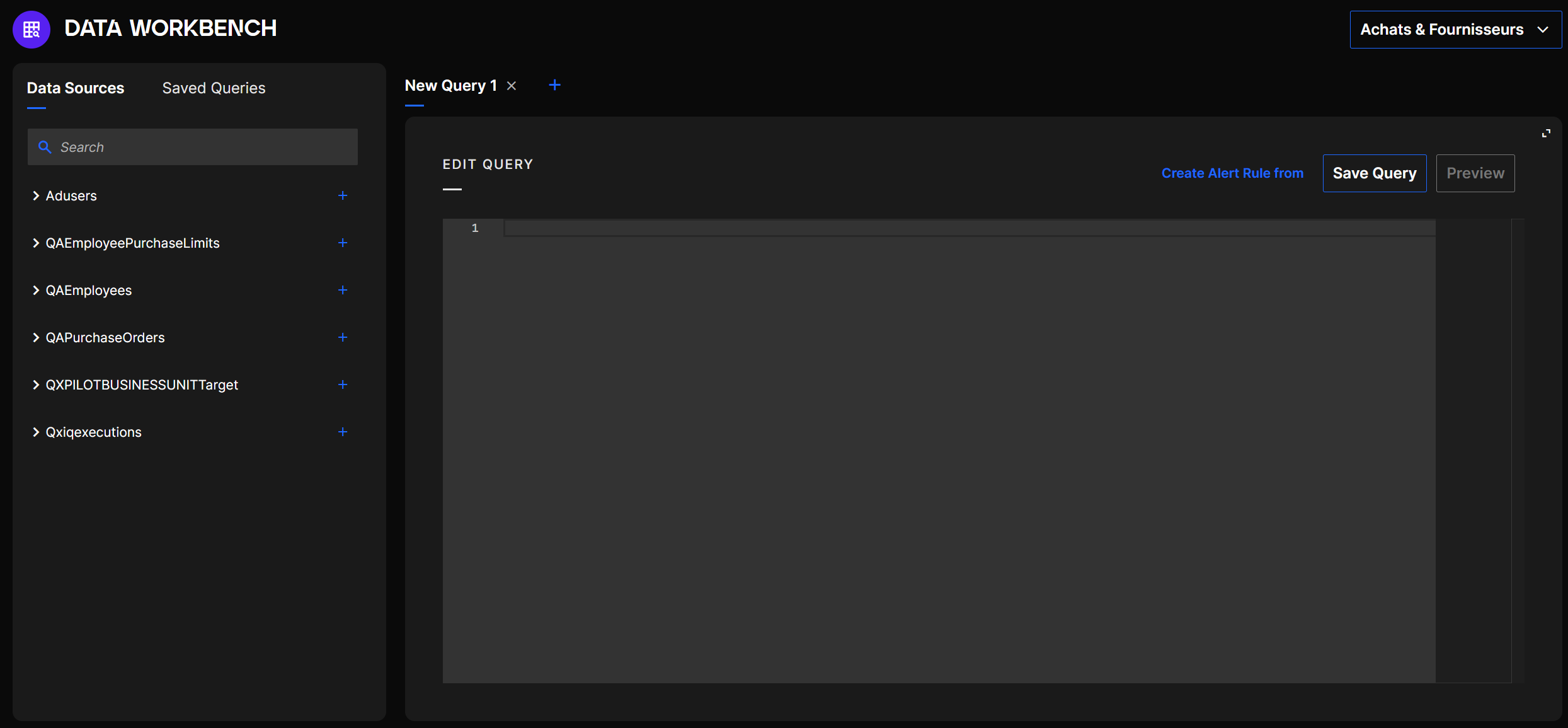
You can change the Control Perimeter using the drop down list at the top right. You will only be able to see Control Perimeters in which you are a Data Manager.
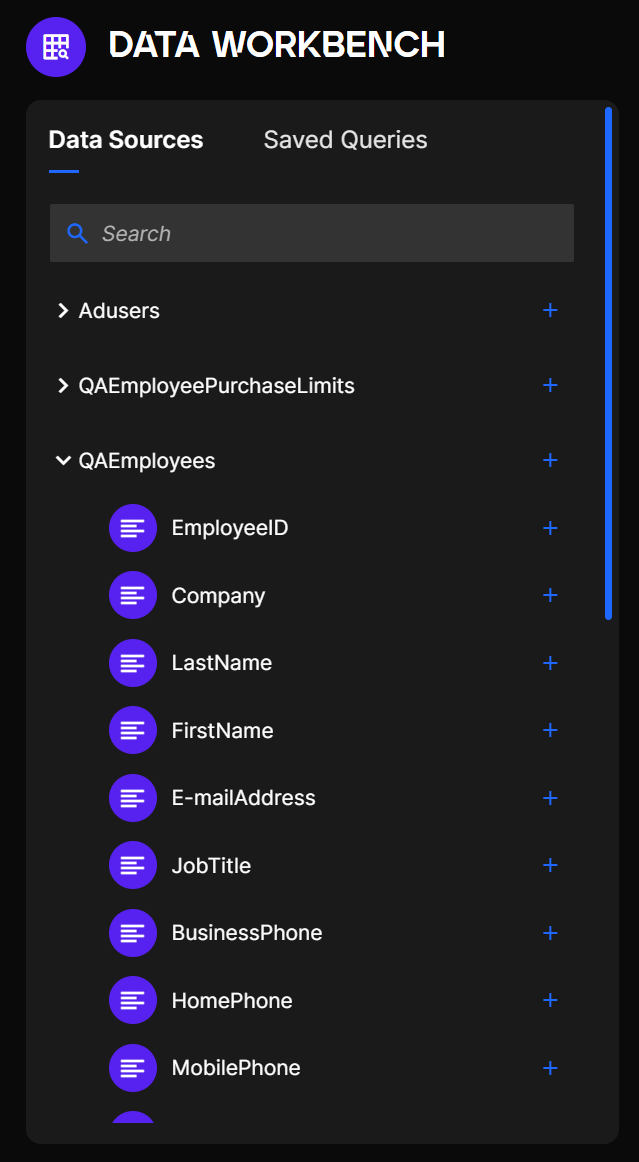
On the left of the screen, you have access to all authorized Data Sources within the Control Perimeter. The table names are displayed as well as the different fields/columns if you expand each section.
Data Sources in Workbench
The KQL editor is on the right. You can write new KQL code and preview the results of the query using the Preview button.
KQL editor in Workbench
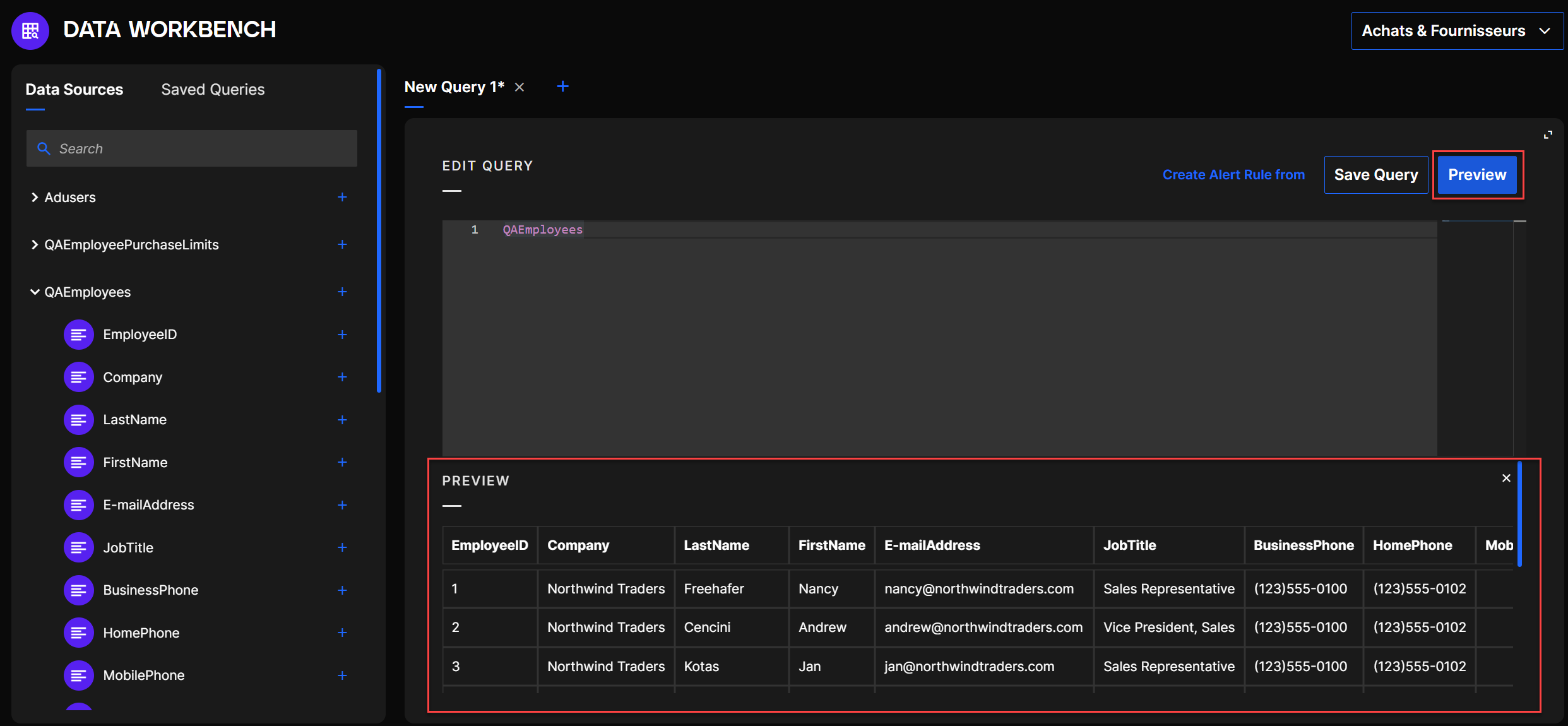
For security reasons, the results of the preview function of a query are limited to 200 rows.
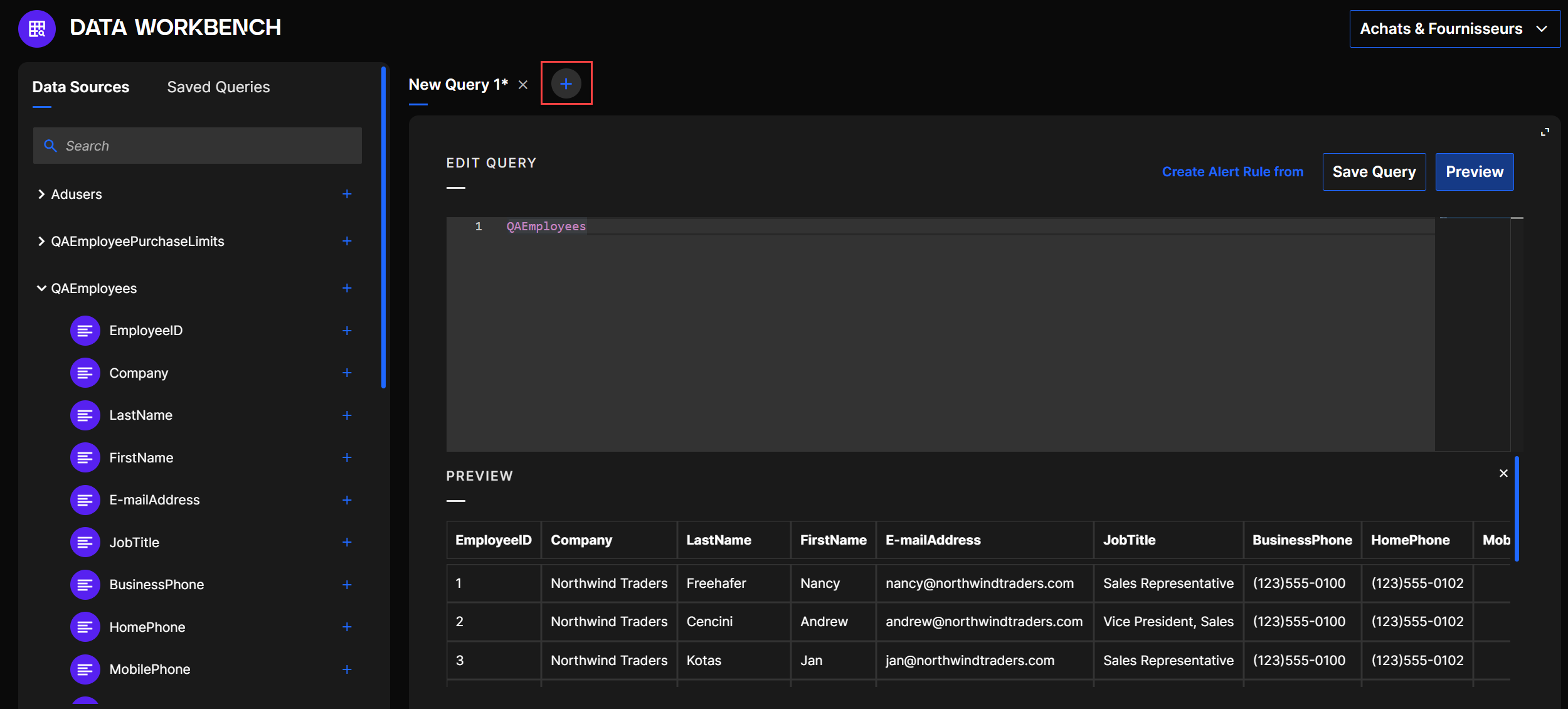
You can also create/modify multiple queries simultaneously by using the + button in the query tab bar.
Create new query in Workbench
Saved Queries
In the Data Workbench, you can also save KQL queries so you can retrieve them later. The saved queries only exist in the Control Perimeter and are only available for the person who created them (other Data Managers in the Control Perimeter won't be able to access them).
To use saved queries, you can navigate to the Data Workbench section in the side menu. After creating your query in your Control Perimeter, you can simply save it using the Save button which will prompt you in order to name the saved query.
Save query button
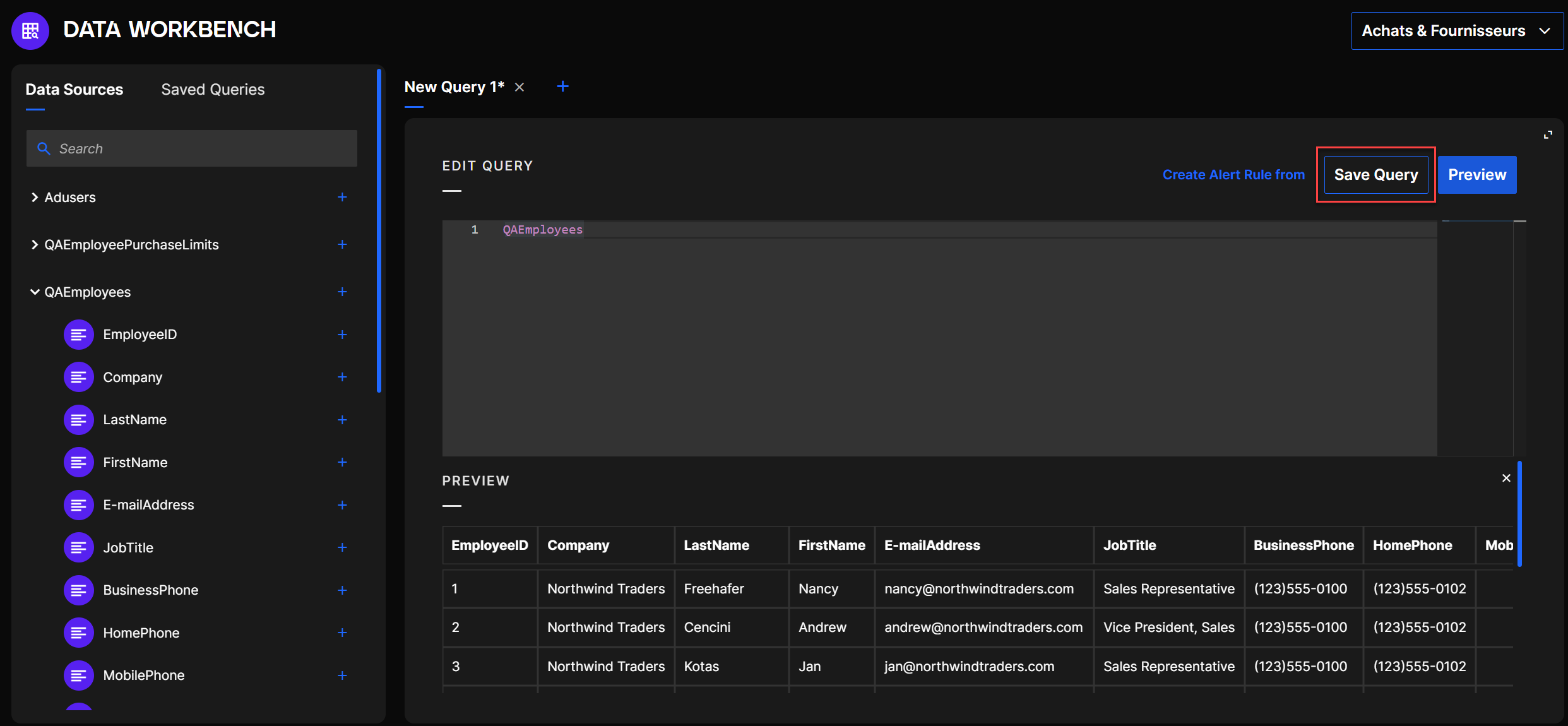
After saving your query, you will have access to it using the Saved Queries section on the left. You can also modify its name using the "..." menu.
Create an Alert Rule from a query
In the Data Workbench, once you are satisfied with your query, you can choose to create a Control Activity Alert Rule using the KQL script of the query. In order to do this, in the Data Workbench, you have the "Create Alert Rule from" button that will take you through the steps to create the Alert Rule.
Create Alert Rule from button
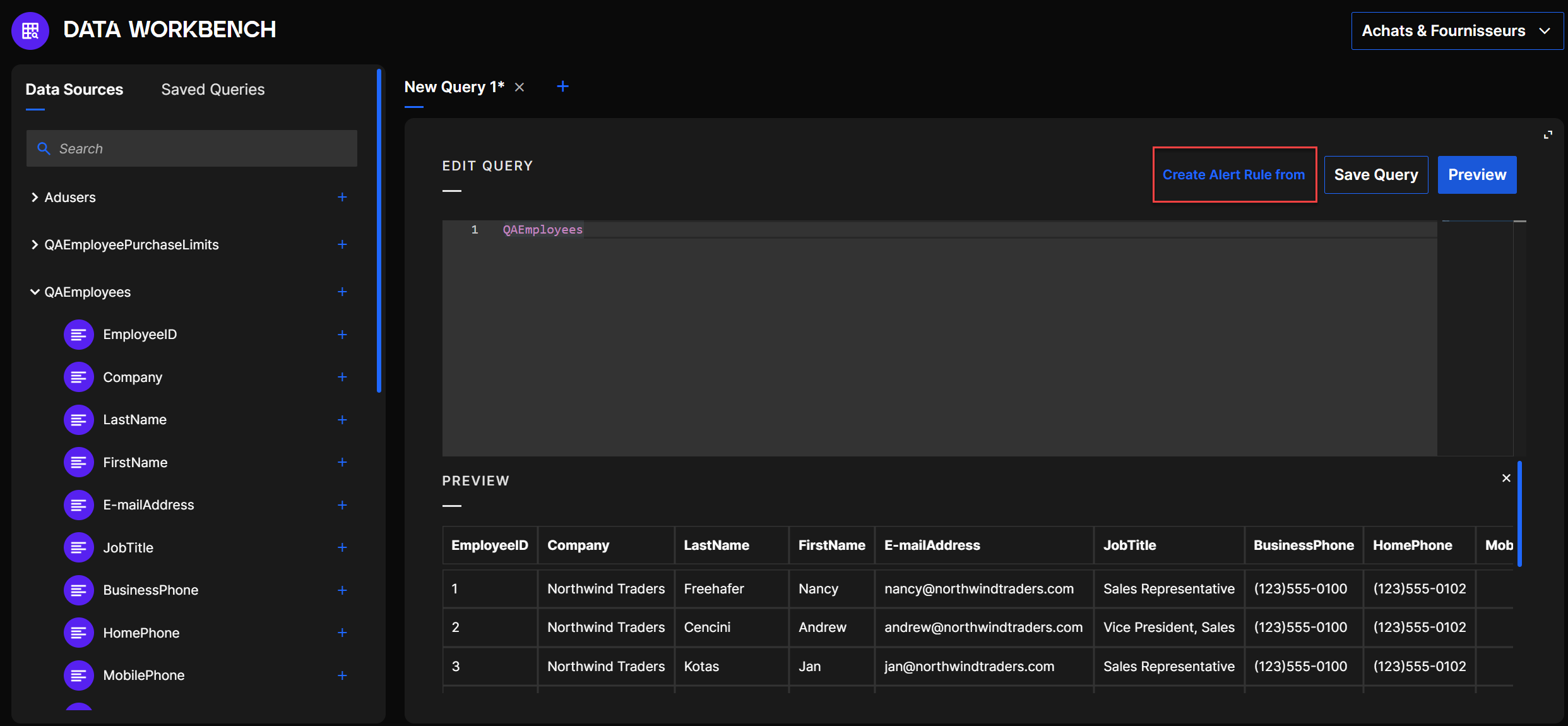
After creating the Alert Rule, the KQL code of your query will automatically be added to the Alert Rule.
To be able to generate Alerts and Alert Events, you must always set FunctionalIDs and EventFunctionalIDs. They must refer to fields used in the query. Refer to the KQL Primer to learn how to set these IDs.