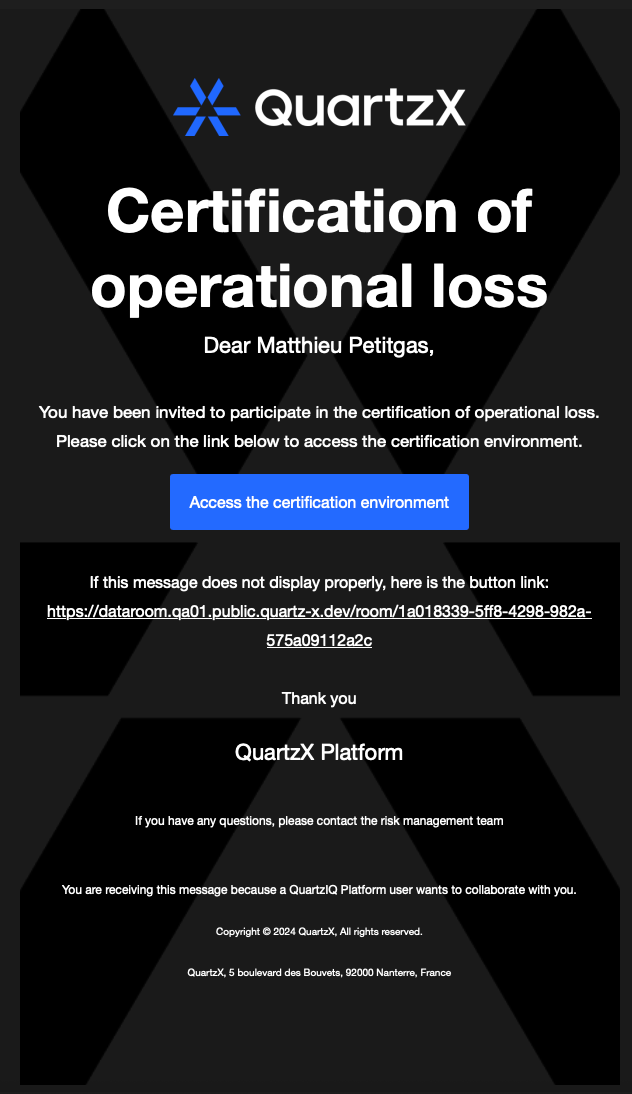
Operational Loss Campaign
In this documentation we will go through all the steps from the creation of the operational loss statement, until the closure of the potential action plans. Here is the main sections of this documentation
- Create the operational loss campaign
To do so, in the side bar menu, Within the Campaign section, select Operational Losses :
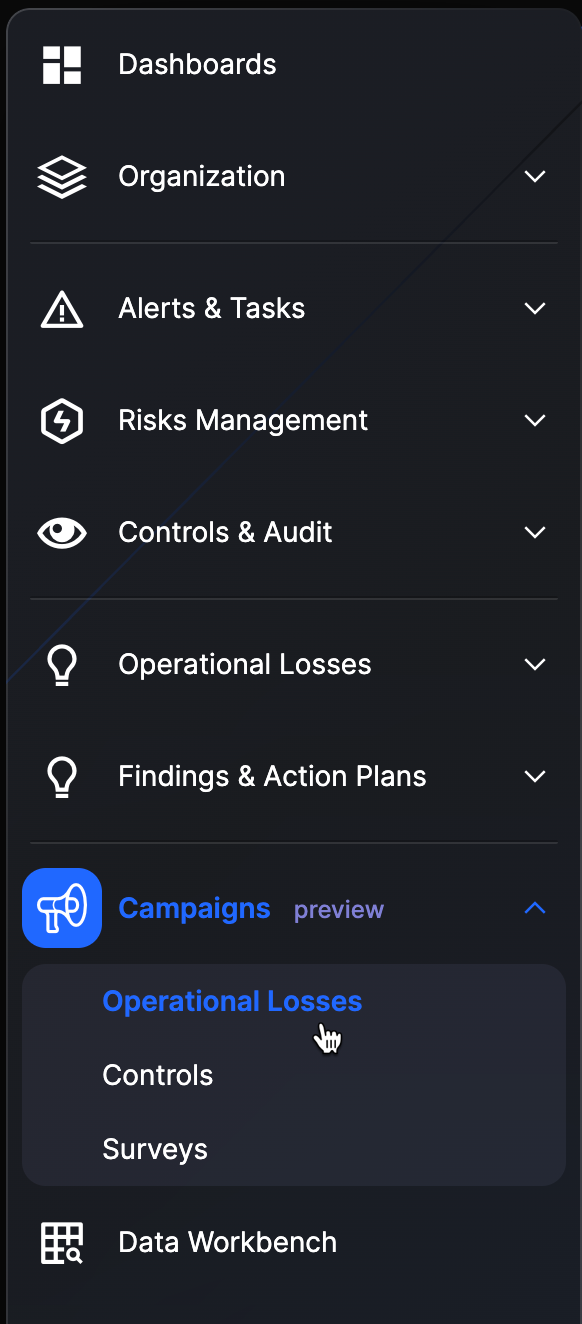
You will get to the page where you will be able to manage the different campaign, such as :
- Create a new campaign
- Follow up / update active campaign
- Close campaign
To initiate a new campaign, click on the New Campaign button:

This will open up a modal where you will be able to define the criteria of the operational loss certification campaign :
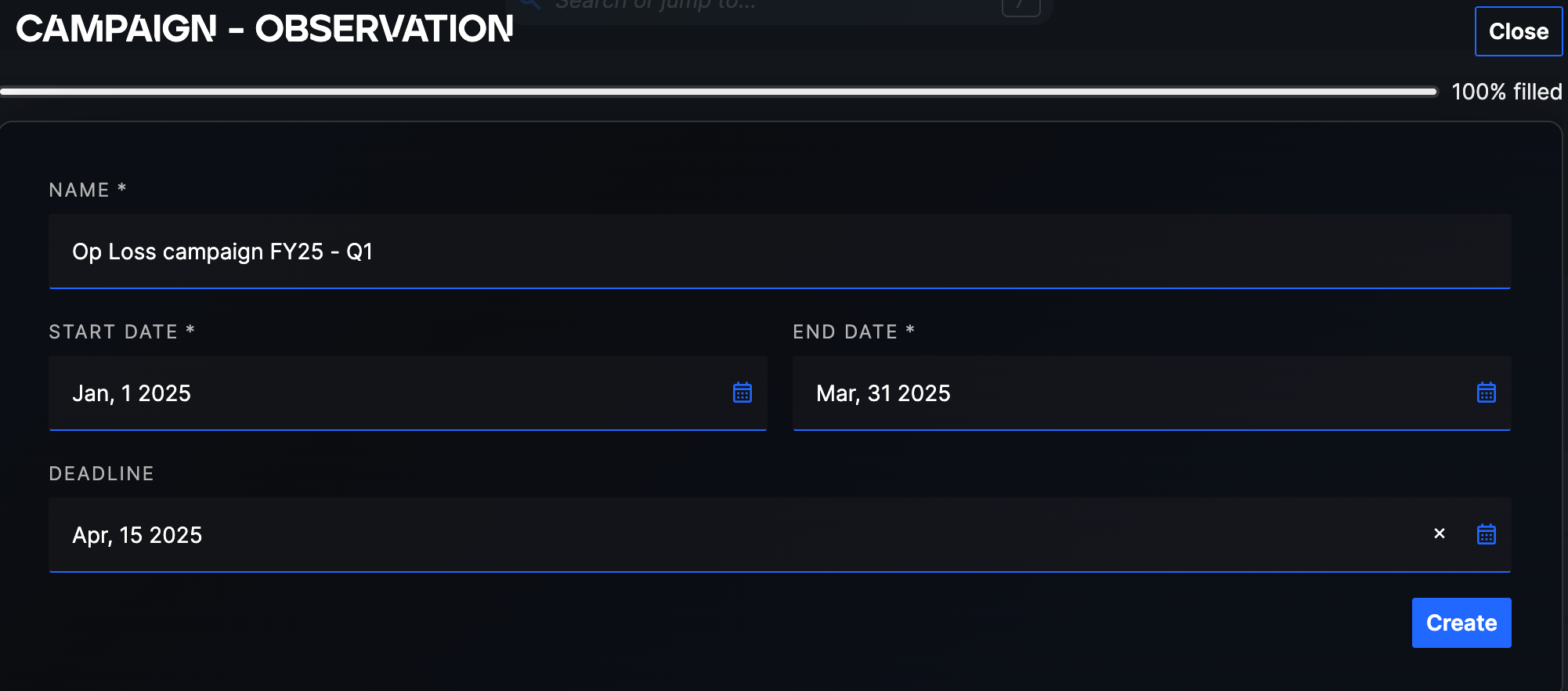
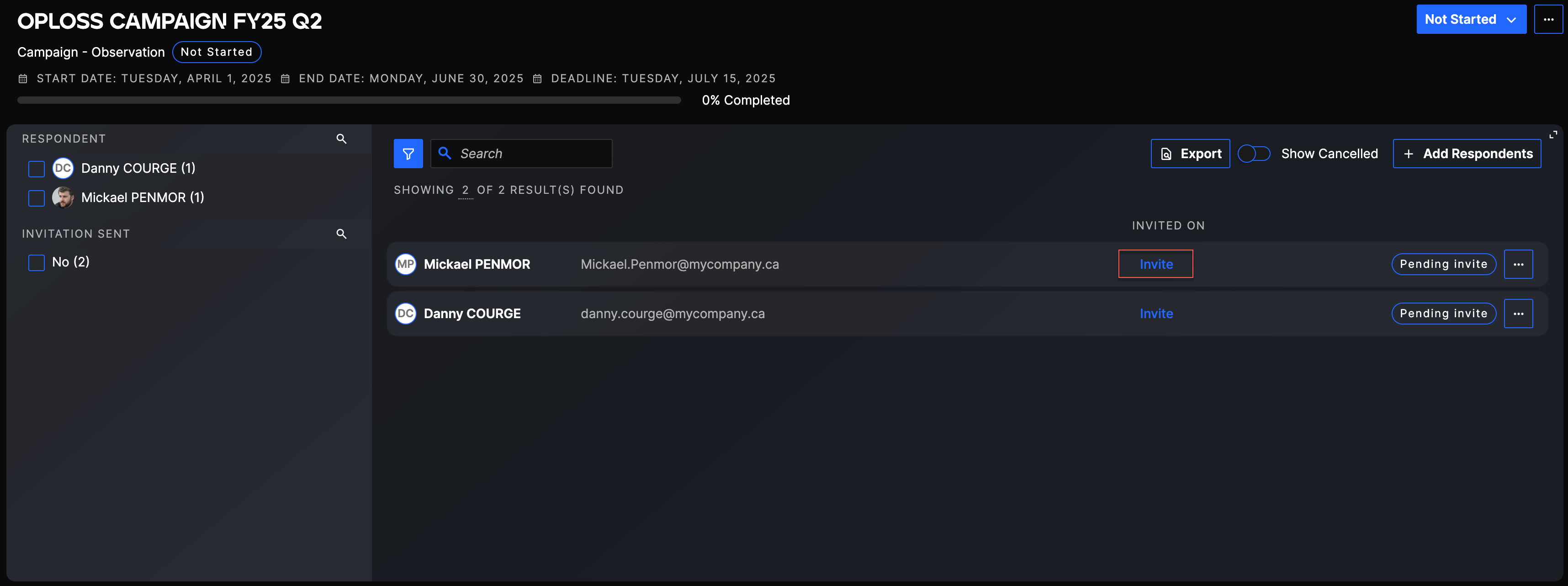
Once the campaign is created, the application will automatically identify the person who certified the operational loss, declared with a date between the start date and the end date of the campaign:
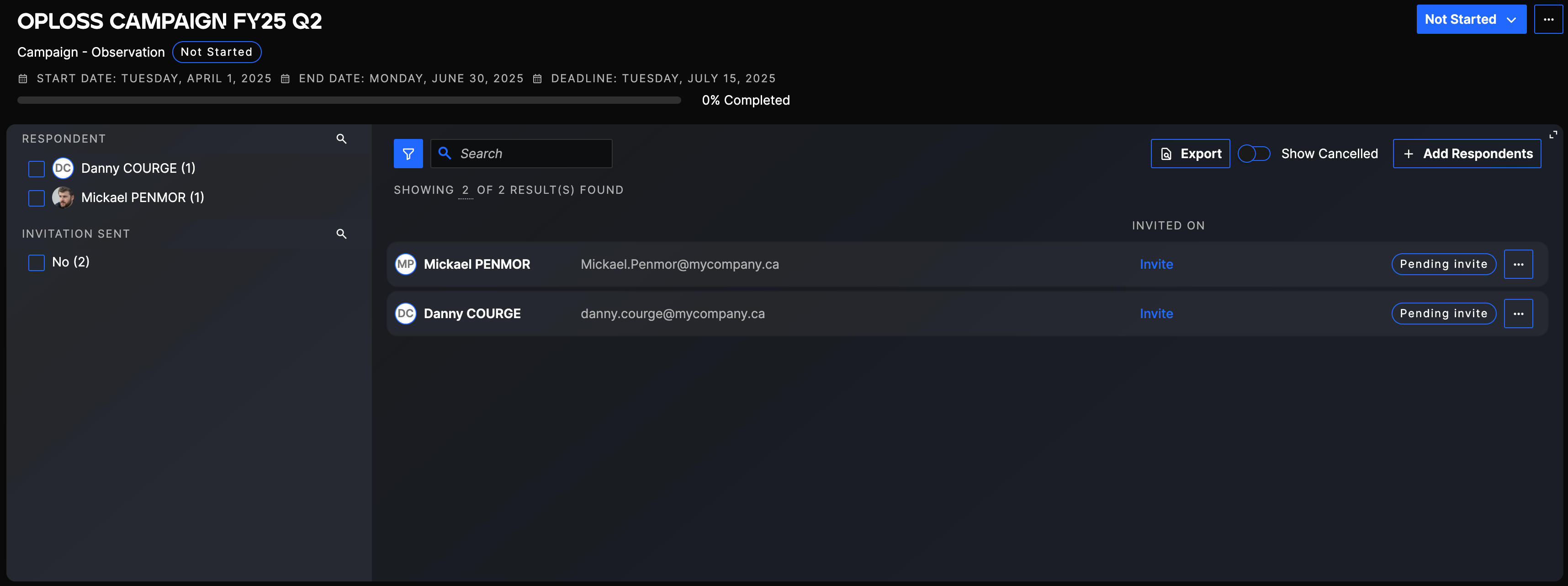
As the manager of the campaign you can then decide when you want to invite the employees to answer the questionnaire. Click on the invite button to do so :
The invitee will then receive an email with a link to access the campaign :