Risk Assessment
Managing Risk Self-Assessment Campaigns (RCSA)
Find out how to create and manage Risk self-assessment campaigns (RCSA).
Introduction
Risk and Controls Self-Assessment (RCSA) is a crucial process for identifying and assessing the key operational risks an organization faces, as well as evaluating the effectiveness of controls addressing those risks. As a fundamental component of a robust operational risk management program, RCSA enhances visibility into operational risks, improves understanding of the risk posture, and helps identify control deficiencies.
Additionally, RCSA allows you to invite your organization's employees that are "from the field" to conduct assessments, providing a more realistic view of your organization's risks.
QuartzIQ allows you to fully implement this process by creating RCSA campaigns and creating automatic consolidated risk assessments, allowing you to have a realistic and holistic overview of your residual risks.
By default, RCSA Campaigns are only performed on a 2-level risk taxonomy (Risk Categories and Sub-Risks).
Creating RCSA Campaigns
You must have the iq-risk-manager application role in order to:
- Create and manage RCSA Campaigns
- Perform consolidated risk assessments
- View the organization's residual risk ratings in the Risk Taxonomy
Please also note that there can only be one RCSA Campaign at a time for your organization.
As stated above, RCSA Campaigns allows you to invite your organization's employees that are from different teams to perform the risk assessments on their Perimeters. This allows you to have a more realistic view of the risks in your organization.
In order to create RCSA Campaigns, you must have created your Perimeters and performed your Risk Mappings beforehand (view the Risk Mappings article for more information).
In order to create a new RCSA Campaign:
- Navigate to the Risks Management > Risk Assessments section in the side menu
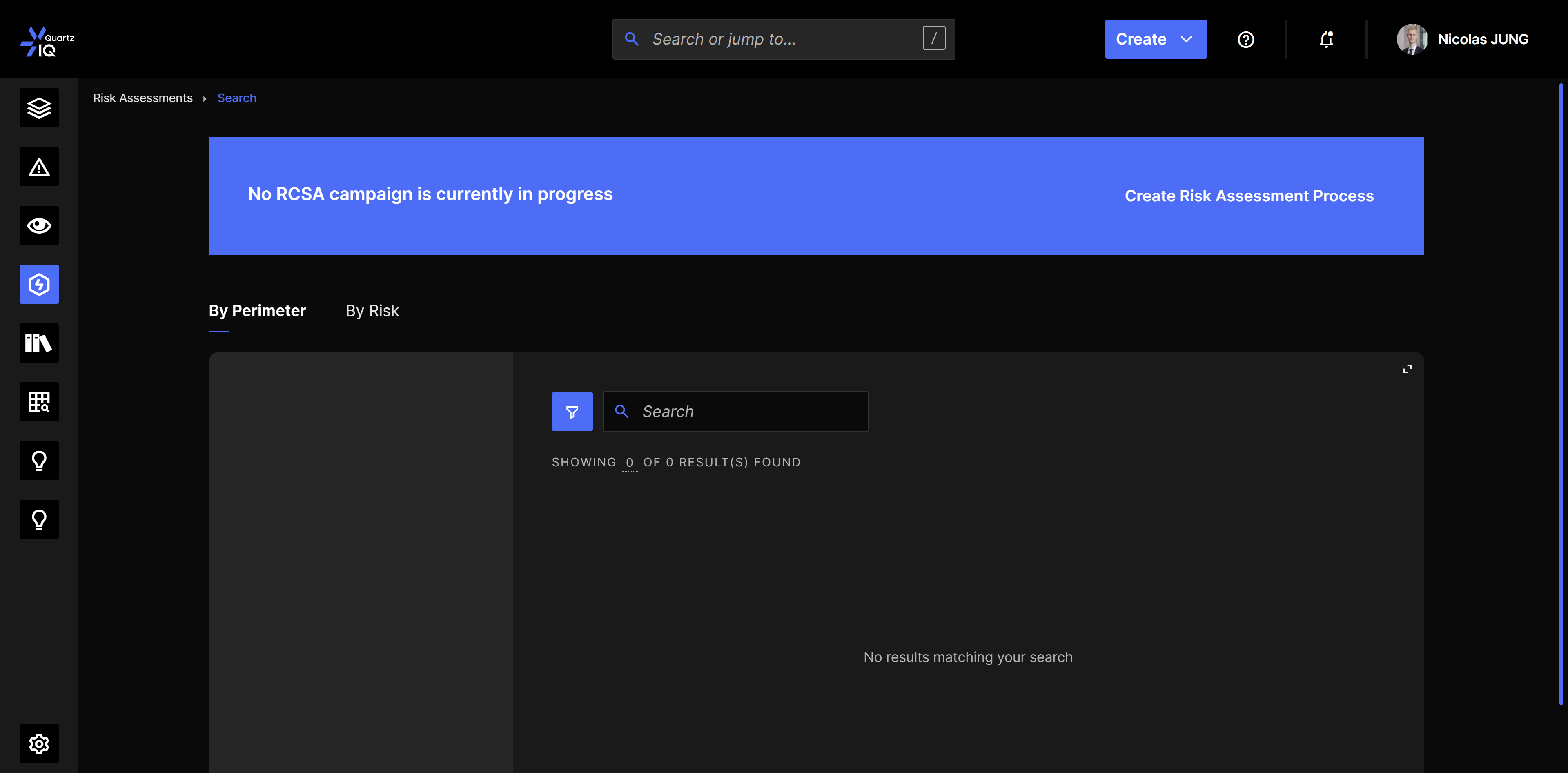
- If no RCSA campaign has already been created, you should see a blue banner allowing you to create the RCSA Campaign.
-
When creating the RCSA campaign, you will need to specify:
- Title: title of the campaign, can be modified later and will be displayed in the app in other pages (Risks, Perimeters).
- Start date: the date on which you want to start your campaign. This is only used for informational purposes and has no effect on the actions in the campaign.
- End date: the date on which you want to close your campaign. This is also for informational purposes.
- Deadline: the date on which you want all respondants to finish their assessments. This is also for informational purposes.
- Previsous risk assessment process: if you have previously performed an RCSA campaign, please select it in this list (the most recent one). This will allow to display the previous values of the RCSA during the assessments and in the app (Risks, Perimeters).
-
Once you have created the RCSA, you will then be able to add the Perimeters you want to assess using the Add Perimeters button.
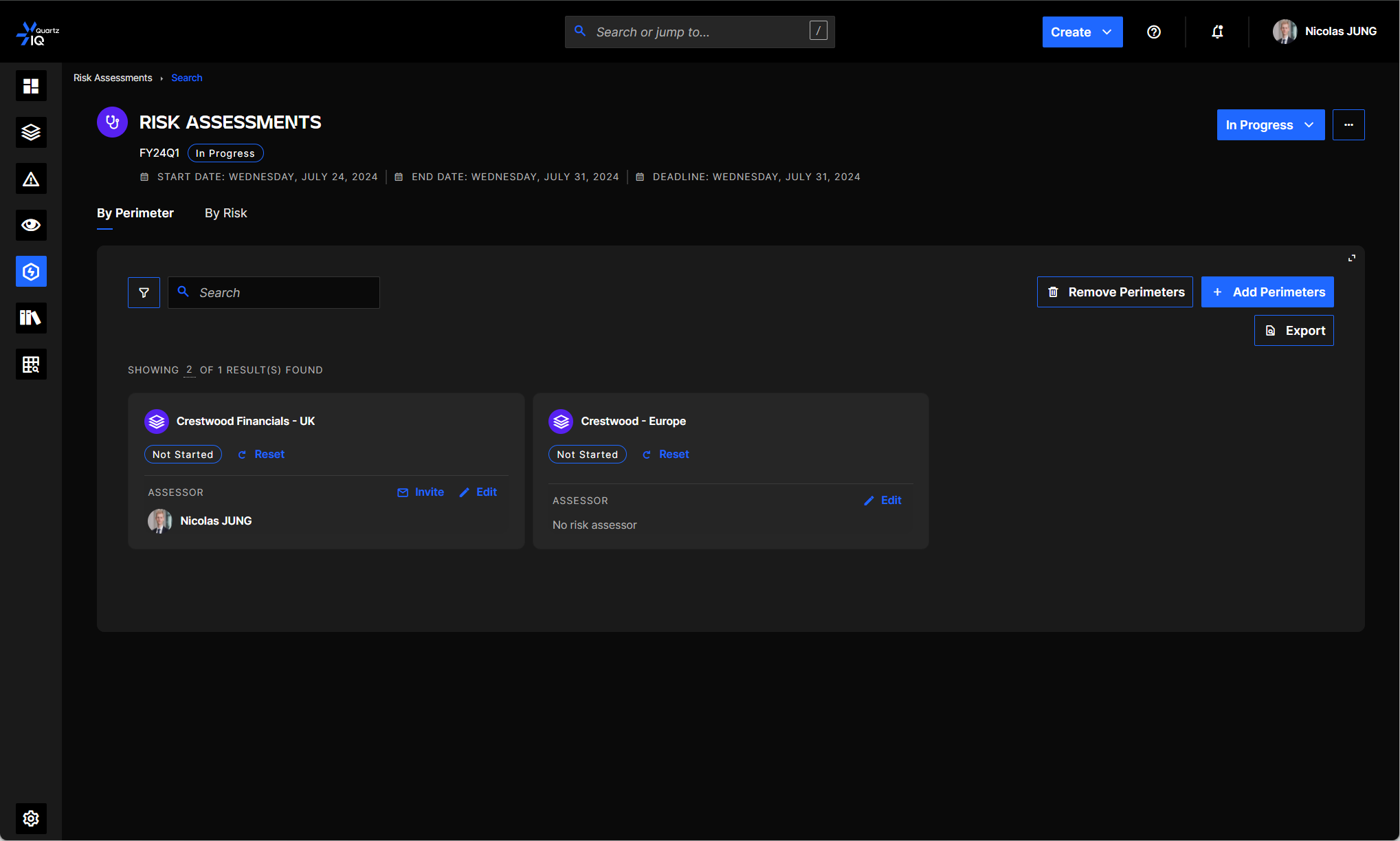
Once the campaign is created, you will have the possibility to add or remove Perimeters during the campaign.
You will also see the status of each Perimeters' assessment on the Perimeters' cards:
- Not started: the assessment hasn't been started
- In Progress: the Risk Assessor has started the Risk Assessment but hasn't finished it.
- Pending Review: the Risk Assessor has perform the Risk Assessment and has submitted for review by the Risk Managers.
- Reviewed: the Risk Assessment has been reviewed by the Risk Managers.
You also have the possibility to modify this workflow as needed using QuartzAdmin.
Inviting Risk Assessors
Once you have added the different Perimeters to your RCSA Campaign, you can begin to invite the Perimeters' Risk Assessors.
In order to invite Risk Assessors to perform their assessment:
- Navigate to the RCSA Campaign
- You will see a card for each Perimeter. On these cards you will see the Risk Assessor that has been defined on the Perimeter. If no Risk Assessor is defined, you can add one using the Edit button.
- You can invite the Risk Assessor using the Invite button.
- Once clicked, the Risk Assessor will receive an email with a link to assess their Perimeters' Risks.
Reviewing Assessments
During the RCSA Campaign, as a Risk Manager, you will be able to review the Risk Assessments that have been submitted by Risk Assessors.
As a Risk Manager (iq-risk-manager application role), you can also perform the assessment instead of the Risk Assessor or modify its assessment before it is submitted.
Once the Risk Assessment has been submitted for review, you will be able to review it and override any risk rating if necessary. You will then have the possibility to Complete the Risk Assessment once you are done.
You can also decide to reset the assessment, by using the Reset button, which will clear the assessments performed by the Risk Assessor and put the Perimeters' assessments in Not Started.
Performing consolidated Risk Assessments
Once all Perimeter Risk Assessments have been completed and reviewed, Risk Managers can perform consolidated Risk Assessments in order to have a rating on the Risks and Sub-Risks at an organizational level.
QuartzIQ automatically calculates the consolidated risk assessments but Risk Managers can override the weighing of each Perimeter and each Sub-Risk in consolidated assessments.
In order to perform consolidated assessments:
- Navigate to the Risks Management > Risk Assessments section in the side menu
- In the RCSA Campaign, select the By Risks tab
- In this tab you will view all Risk Categories and Sub-Risks. You can click on Sub-Risks to view the computed rating.
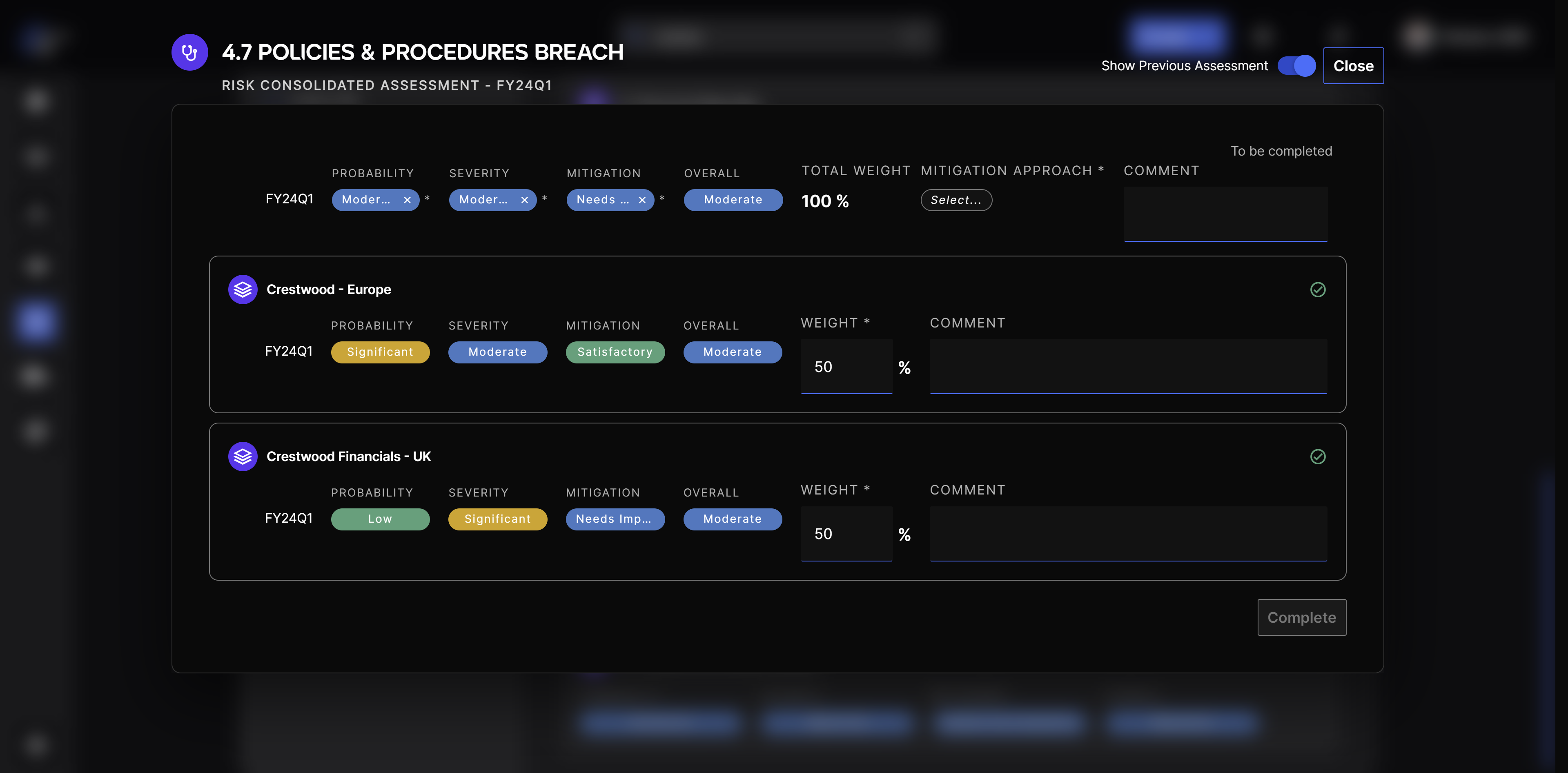
By default, the weighing is evenly split between the number of Perimeters that have linked this Risk. You can override the default weighing, in which case the comment becomes mandatory.
The overriden weighing is also persisted and carried on to the next RCSA campaign for the specific Perimeter and Risk.
Once all Sub-Risks have been assessed, you can also perform consolidated assessments for the Risk Categories in the same way as the Sub-Risks.
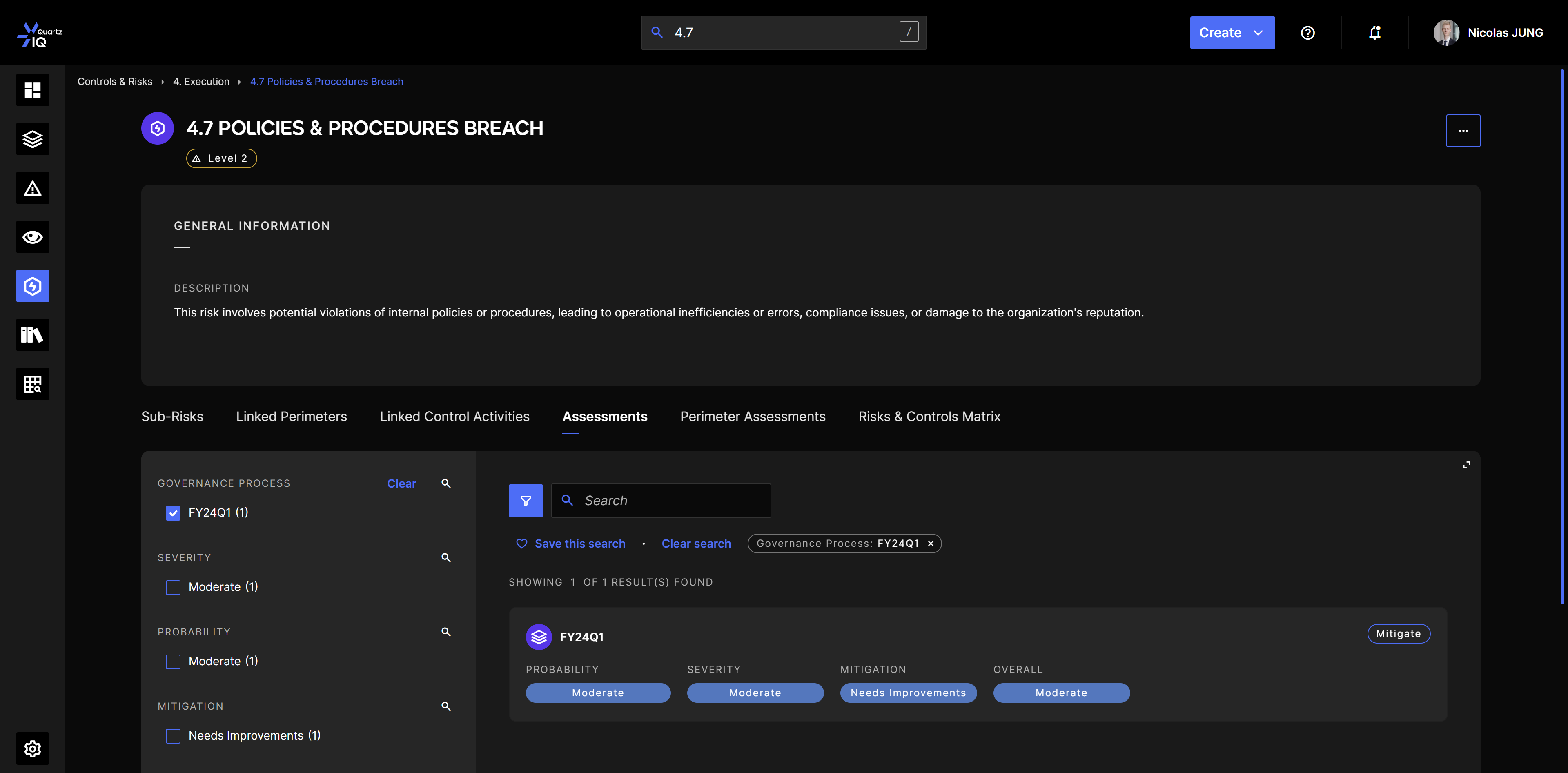
These consolidated assessment are also available when viewing the Risks details by navigating to the Risks Management > Risks section in the side menu, selecting the Risk you want to view and going to the Assessments tab.
Closing the campaign
Once your RCSA Campaign is completed, you can close it using the blue button in the RCSA Campaign screen.
Please note that once your campaign is closed, you will not be able to modify any assessments anymore.
You can, however, access to the history of the consolidated assessments by navigating to the Risks Management > Risks section in the side menu, selecting the Risk you want to view and going to the Assessments tab.
You can also view the Perimeters assessments for the last 2 RCSA Campaigns in the Perimeter Assessments tab.